
Rule editor
This page shows you how to build a rule step by step. Use the rule editor when an alert cannot say what you need: several branches, a schedule, a webhook or a log line.
A rule is a small flow of steps: a trigger starts it, a condition decides which way it continues, and an action does something.
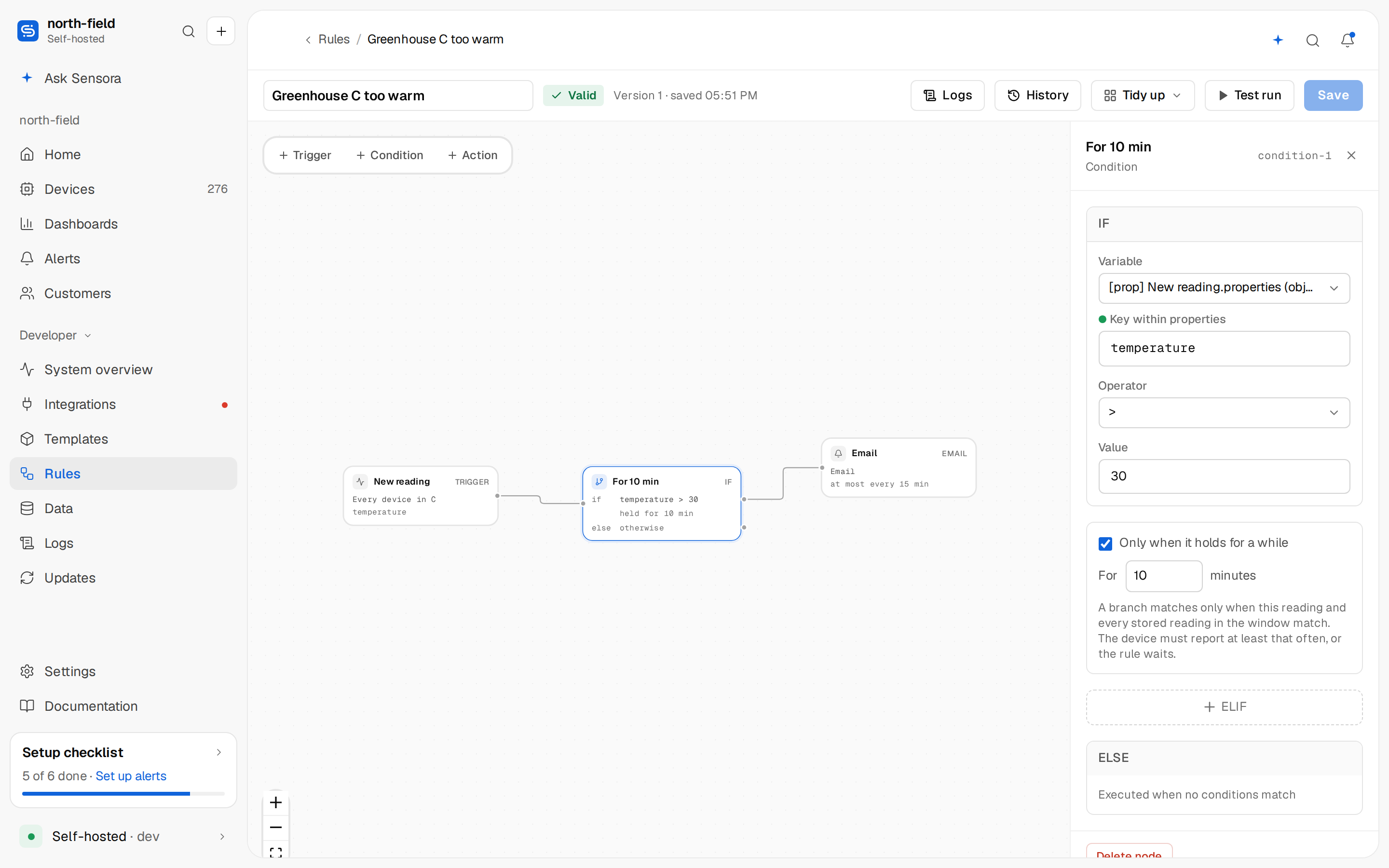
Create a rule
- Open Developer › Rules in the sidebar and select New rule.
- Select + Trigger and pick New reading or Schedule. Its settings open on the right.
- Select + Condition and pick Condition. The editor connects it to the selected step.
- Select + Action and pick an action. It connects to the if output of the condition.
- Select each step and fill in its settings. Type a name at the top left.
- Select Test run to try the rule. See Test a rule.
- Select the empty canvas to see the Rule panel. Leave the switch at Paused after saving, or set it to On after saving.
- Select Save.
You can also right-click the canvas to add a step, and drag from the dot on a step to connect it by hand.
To start from a sentence, type it in Describe a rule on the Rules page and select Build rule. It works like Describe an alert. Read the draft before you save it.
The "Store telemetry" rule
Every instance has one rule tagged System: Store telemetry. This rule is how readings get into the database. It cannot be deleted, but it can be switched off like any rule.
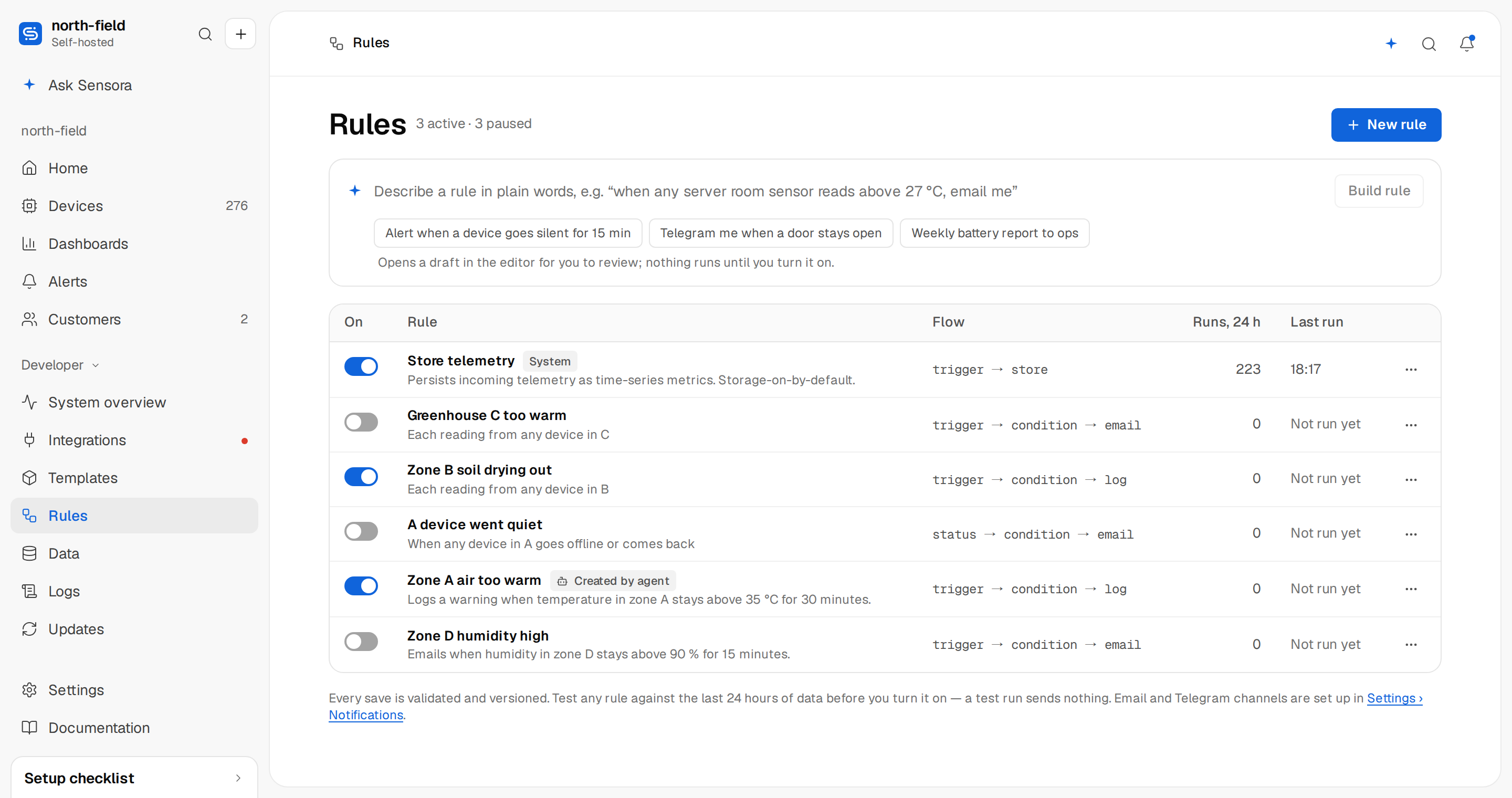
DANGER
Do not switch Store telemetry off, unless you want Sensora to stop storing readings. Charts, test runs and the Data explorer all read stored readings.
Triggers
New reading
| Setting | Choices |
|---|---|
| Watch | One device, or any device. Every device in a zone. Every device using a template |
| Fires on | data: every accepted message. status: the device goes offline or comes back online |
| Properties | Run only when the message has one of these readings. Empty means all |
A zone is the site of a device. A zone or template is looked up each time a reading arrives, so devices you add later are included.
With Fires on status, the condition can check attributes.status, which is offline or online. See Offline detection.
Schedule
| Setting | Meaning |
|---|---|
| Runs | Every 15 minutes, Every hour, Every day at…, Weekdays at…, Every Monday at… or Custom (cron) |
| Cron expression | Five fields: minute, hour, day of month, month, day of week. For example */30 6-20 * * * |
| Timezone | For example Europe/Berlin. Empty uses the server's time zone |
| Device (optional) | Empty means the whole fleet |
A schedule for one device passes on that device's latest readings as properties.*. A schedule for the whole fleet passes on the counts attributes.online, attributes.offline, attributes.provisioned and attributes.total. Runs that were due while the server was down are not made up later.
Conditions
A condition has an IF branch, any number of + ELIF branches, and ELSE. The branches are checked from the top, and the rule continues from the output of the first one that matches.
Each branch compares one value. Pick the Variable, usually properties of the trigger, type the name of the reading in Key within properties, then choose an Operator and a Value.
There is no "and" or "or" inside a branch. To require two things, connect a second condition to the if output of the first.
Only when it holds for a while
Tick Only when it holds for a while and type the minutes, from 1 to 1440. A branch then matches only when the current reading and every stored reading of that device in the window match.
- It works on number and true-or-false readings only.
- The device must report at least as often as the window is long. Otherwise the branch never matches.
- Sensora checks the stored readings each time, so a server restart does not reset the wait.
Actions
There is no action that sends a command to a device.
| Action | What it does |
|---|---|
| Notify | Sends an email or a Telegram message, with a cooldown against repeats. See Notifications |
| Webhook | Calls a URL. See Webhooks |
| Log | Writes a line to Logs with the level Debug, Info, Warning or Error |
| Store | Stores readings as metrics. The system rule uses it |
| Flatten | Turns the fields of an object into key and value rows for the steps after it |
In Subject, Message, the log message and the webhook body you can insert values from earlier steps:
{{input.device_name}}: temperature is {{input.properties.temperature}} °CThe settings panel lists the available placeholders. A placeholder with no value is replaced by nothing.
Problems the editor flags
The editor checks the rule after every change. A banner lists the problems, and the chip next to the name changes from Valid to the number of problems. Save is blocked until they are fixed.
The server checks one more thing when you save: a rule that is On needs every channel of its Notify steps to be able to send. Otherwise the save is refused with the reason. Save the rule paused, or set up the channel first.
Paused and on
A paused rule does nothing, and keeps its steps, versions and logs.
- In the editor, the switch in the Rule panel takes effect when you select Save.
- On the Rules page and the Alerts page, the switch at the start of a row turns a rule on or off at once.
A change takes effect within a few seconds. A rule that an AI agent wrote stays paused until a person turns it on. See Approvals.
See what a rule did
- The Rules page shows Runs, 24 h and Last run for each rule.
- The Logs button in the editor shows the lines this rule wrote, such as notifications sent and runs that failed.
- The API returns one entry per run, with the device, the time and the outcome.
curl "http://localhost:8090/api/rules/<id>/executions?limit=20"The same runs are in the rule_executions table of the Data explorer, kept for 30 days by default. The result of each single step shows only in a test run.
Every save creates a version that you can restore. See Rule health and history.