
Sell a product
If you sell a device built on Sensora, the Customers area lets each buyer see their own device and nothing else. You print a claim code on the box. The buyer scans it, signs in with their email address, and the device appears in a small app that carries your name.
From a box to a customer's screen
- Add each device you ship to Sensora, as you do for your own devices. See First device.
- In the dashboard, open Customers, then Claim codes, and make one code per device. See Claim codes.
- Print the labels and put one on each box. Each label has a QR code, the address of your app and the code as text.
- The buyer scans the QR code with their phone. The customer app opens, asks for their email address and sends them a sign-in link.
- The buyer names the room the device is in and selects Add device. The device now belongs to their customer account.
- The buyer sees the device and its latest readings under Rooms. You see the buyer in Customers.
What you need first
The customer app is part of your Sensora instance. Buyers reach it over the internet, so the instance needs more setup than a trial on your laptop.
| Requirement | Why |
|---|---|
Email sending: SMTP_HOST and SMTP_FROM | Customers sign in with a link sent by email. There are no customer passwords. Without email, nobody can sign in. See Notifications. |
A public address, set as PUBLIC_URL | Sign-in links and box labels use this address. Without it, the app answers "This server doesn't know its public address" and sends no link. |
| HTTPS in front of the instance | The bundled stack serves plain HTTP. See Security. |
| A dashboard password | The customer app and the dashboard share one address. Without a password or an API key, a customer who opens / in place of /portal gets your open dashboard. See Security. |
Configuration describes the variables. To try the flow on your own computer without a mail server, see Try it without email.
The screens
| Screen | Address | Who uses it | What it is for |
|---|---|---|---|
| Customers | /customers | You | Customer accounts, their devices and how many messages their devices sent this month. |
| Claim codes | /customers/claim-codes | You | Make codes, print labels, transfer or revoke a device, set the ownership rules. |
| Customer app | /customers/app | You | The app's name, logo, colour, address and what customers are allowed to do. |
| The customer app itself | /portal | Your customers | Their rooms, adding a device, email reminders. See Customer app. |
The three dashboard screens need the dashboard session or an API key with the admin scope. Keys with a lower scope cannot read customer data.
The Customers screen
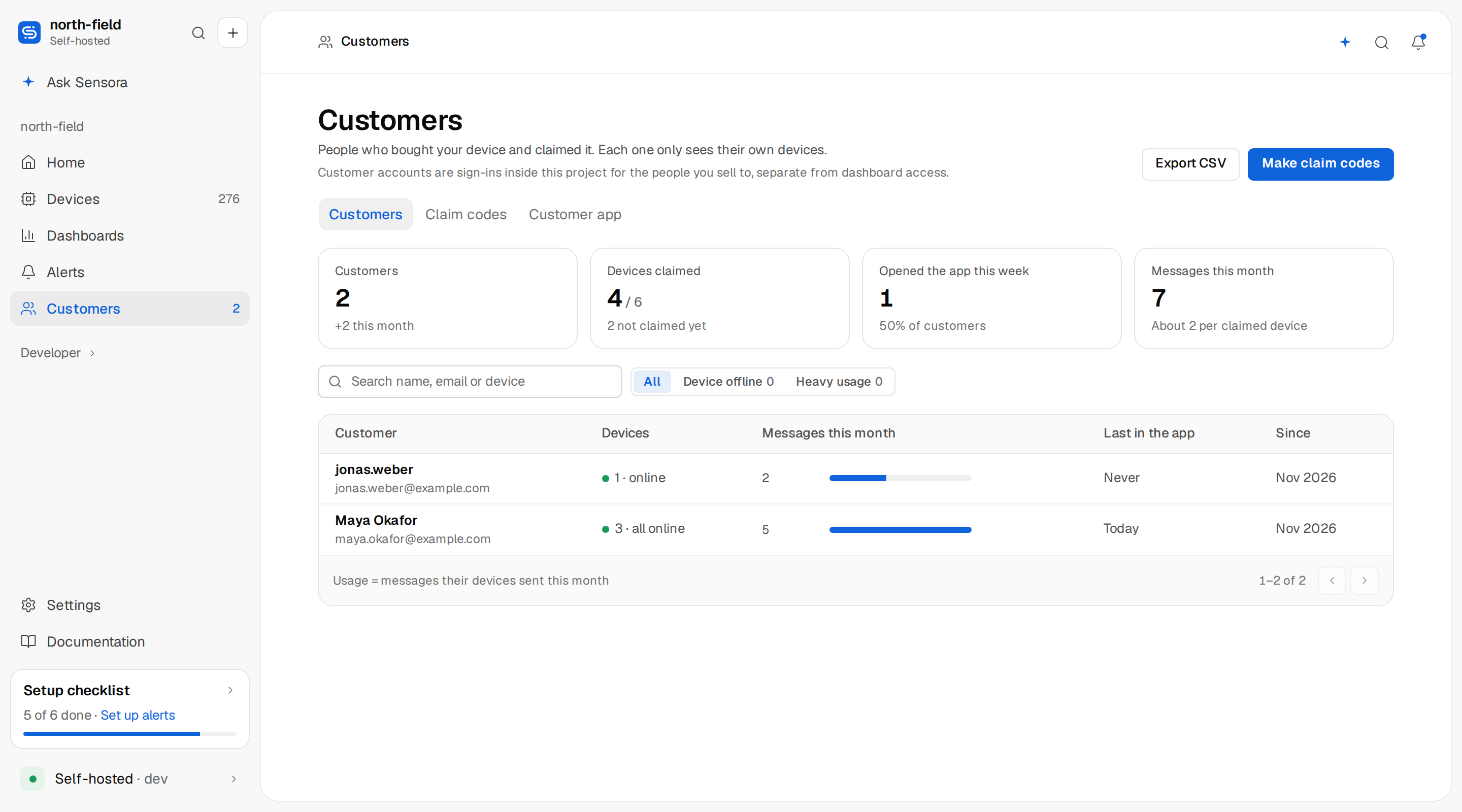
The four tiles show the number of customers, how many devices with a claim code are claimed, how many customers opened the app in the last seven days, and the messages claimed devices sent this month.
The table has one row per customer account: the name and email address, their devices and how many are offline or not set up, the messages their devices sent this calendar month, when they last opened the app, and the month the account was made.
- Search by name, email address, device ID, serial number or room name.
- Device offline shows customers with at least one offline device.
- Heavy usage shows customers whose devices sent more than twice the median number of messages per device this month.
- Export CSV downloads the rows that match the search and the filter.
What a customer can and cannot do
| A customer can | A customer cannot |
|---|---|
| Sign in with a link sent to their email address | Open the dashboard, the API or the data of any other customer |
| Add a device with the code on its box | Add a device without a code, or a device another account already owns |
| See the latest readings of their own devices and how old they are | See charts, dashboards, rules, alerts or logs |
| Give each device a room name when they add it | Change device settings, templates or firmware |
| Get an email when a device stops reporting, if you allow it and email is set up | Get alerts on values such as a temperature limit |
| Delete their own account | Share a device with another person or download their data |
A customer sign-in is refused on every dashboard API path. A device that does not belong to the customer answers "not found", so device IDs cannot be tested from the app.
What is not there
- No billing. Sensora does not take payments, create invoices or connect to a payment provider.
- No plans or limits per customer. Every customer gets the same app with the same permissions.
- No native phone app. The customer app is a web page that works in a phone browser.
- No history chart. The customer app shows the latest readings only.
- No Wi-Fi setup from the app. Your firmware needs its own way to join the customer's Wi-Fi. See Customer app.
- No button in the dashboard to delete a customer account. The customer can delete their own account in the app, or you can send
DELETE /api/customers/<customer id>with anadminkey. See API.
Next steps
- Claim codes: make codes, print labels, transfer and revoke devices.
- Customer app: branding, customer sign-in and your own domain.
- Remote updates: send new firmware to devices that are already with customers.