
Offline devices
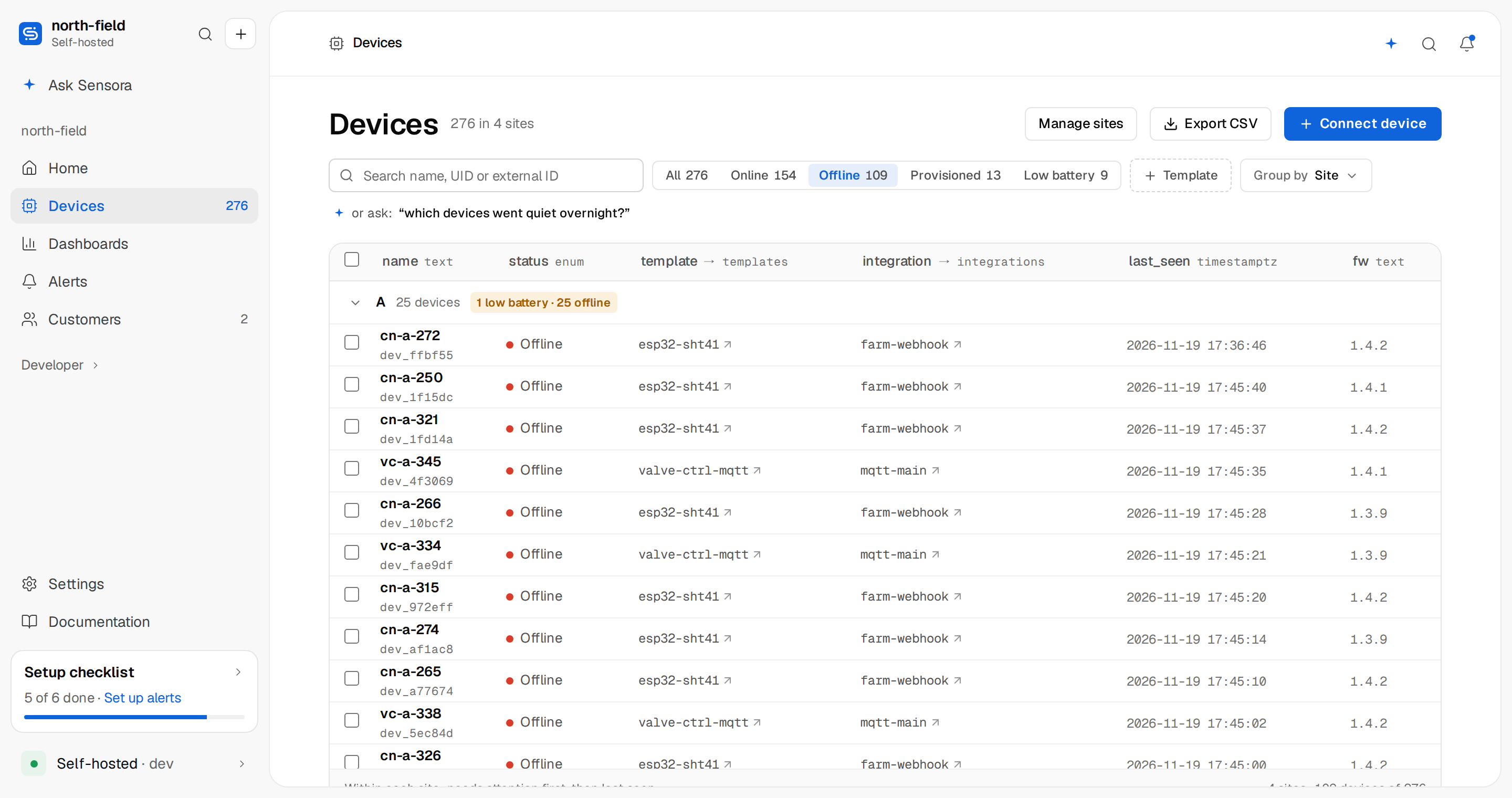
Sensora marks a device as offline when it has sent nothing for too long. This page explains the rule, where you set the time, what Sensora does when a device goes quiet, and how to be told about it.
The rule
Every device has a last-seen time: the time of its latest message that had something to store. From it, Sensora works out the status each time you look.
| Status | Meaning |
|---|---|
| Provisioned | The device exists and has never sent a message that had something to store. |
| Online | The time since the last message is not longer than the offline window. |
| Offline | The time since the last message is longer than the offline window. |
A message that is refused or that has nothing to store does not count. So a device that sends only payloads its template cannot read goes offline too. If a device sets its own timestamp with recorded_at, that time becomes its last-seen time. See Timestamps.
Where the offline window is set
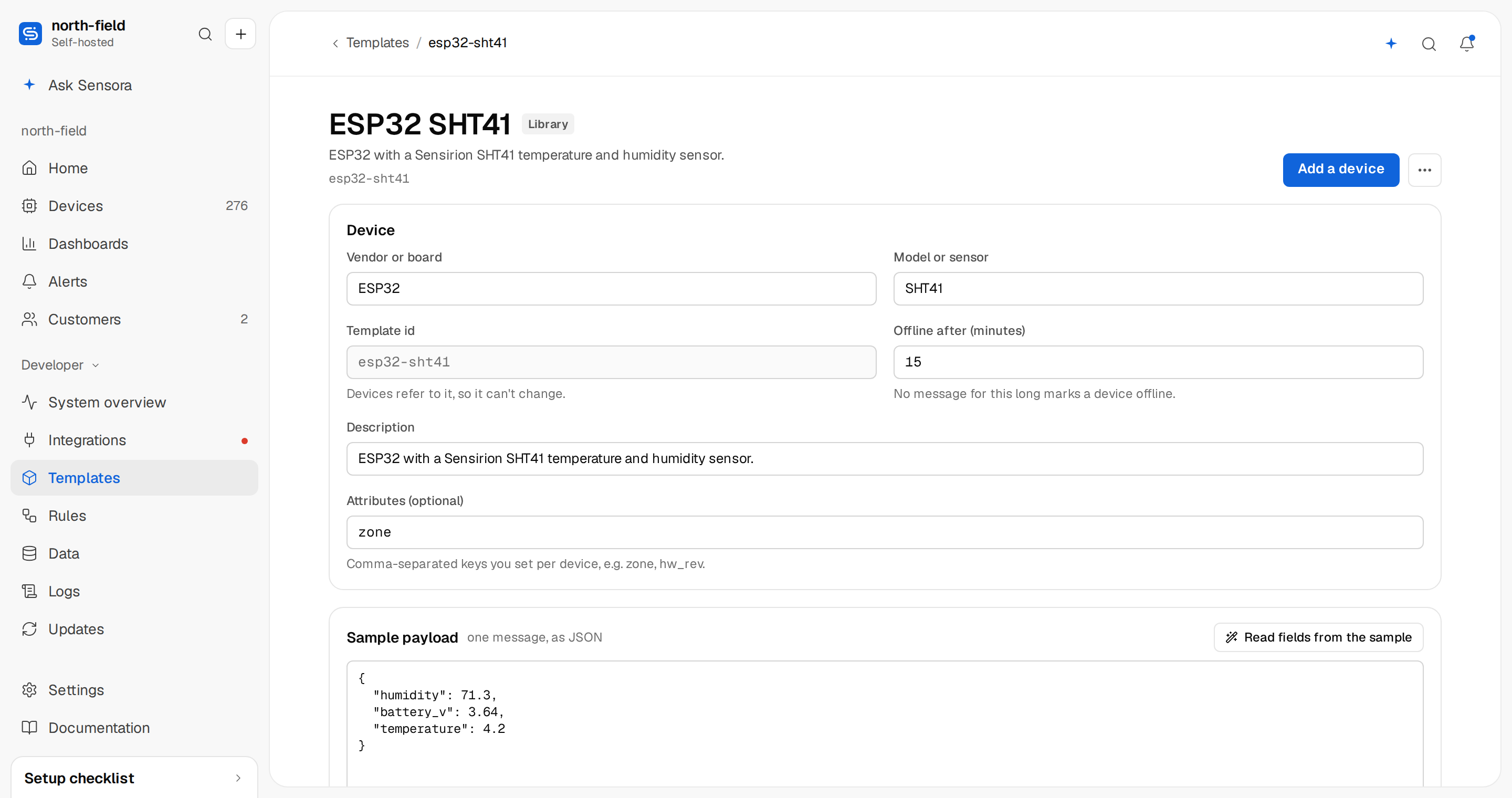
The offline window belongs to the template, not to the device. All devices on a template share it. There is no setting for a single device. To give one device a different window, give it a different template.
To change it:
- Open Templates in the Developer group of the sidebar and open the template.
- Select Edit template.
- Change Offline after (minutes) and select Save changes.
On a device page, the Configuration tab shows the value as Offline window. You cannot edit it there.
Defaults
| Case | Offline window |
|---|---|
| A device without a template | 60 minutes |
| A new template that you create in the dashboard | 60 minutes, until you change it |
| A template from the library | 15 minutes, 60 minutes or 6 hours. See the library table. |
| A template that Sensora creates for a board set up over USB | Five times the board's send interval, and at least 5 minutes. With the default interval of 60 seconds this is 5 minutes. |
| A template proposed by Detect from a payload | 60 minutes. If the sample has an interval field, three times that interval, and at least 5 minutes. |
In the API the value is offline_after, in seconds.
A wrong label for devices without a template
For a device without a template, the device page shows 15 min of silence (default). The real window for such a device is 60 minutes.
Pick a window that is several times longer than the interval at which the device sends, so that a few missed messages do not mark it offline.
How often it is checked
- The status you see is worked out when the page or the API answers. It is always current.
- Events, alerts and rules come from a check that the server runs every 30 seconds. It finds the devices that crossed their offline window since the previous check.
So a message about an offline device arrives up to 30 seconds after the device crossed its window. To change the 30 seconds, set LIVENESS_SWEEP_SEC. With 0 the check is off: the status still shows, but no events, alerts or rules follow. See Configuration.
What happens when a device goes offline
When the check finds a device that has crossed its window, Sensora does this once:
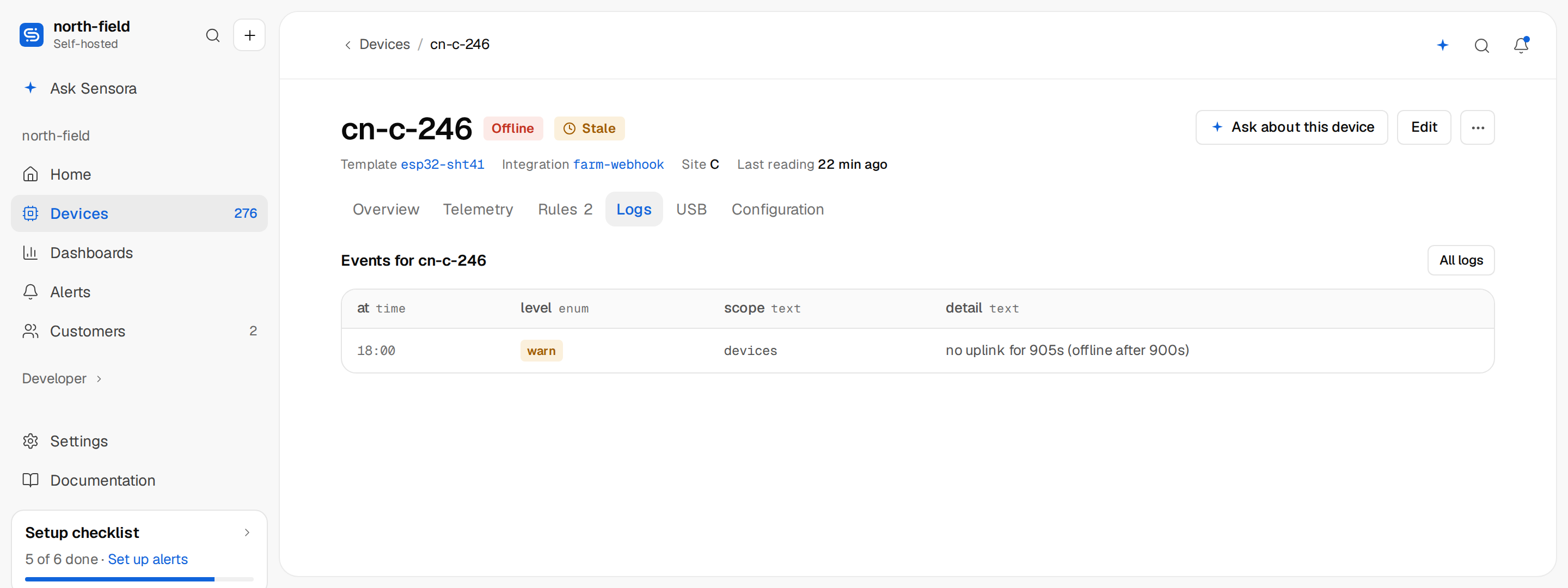
- It writes a warning event, for example
no uplink for 905s (offline after 900s). You see it in Logs and on the Logs tab of the device. - It raises the built-in Device offline alert. This sends a message only if you chose a channel for it. See Notifications.
- It runs the rules and alerts that watch the device's status, for example an alert with the condition that a device goes offline.
- It updates the online and offline counts in the dashboard.
The same device does not cause this again while it stays offline.
Three cases cause no event and no alert, although the device shows as Offline:
- The server was not running when the device crossed its window. After a restart, Sensora does not send alerts for devices that went quiet while it was down.
- You made the window shorter, and the device had already been silent for longer than the new value.
- The device never sent anything. A Provisioned device is never reported as offline.
When the device comes back
The next message that is stored sets the device to Online at once. Sensora writes the event device came online and runs the rules that watch the device's status. The built-in Device offline alert has no message for the return. If you want one, make a rule for it. See Rule editor.
The first message of a new device also writes device came online.
Be told when a device goes offline
There are two ways. You can use both.
- For all devices: turn on the built-in Device offline alert by choosing who receives it. See Notifications.
- For some devices: create an alert for one device, one site, one template or all devices, with the condition that the device goes offline. See Alerts.
Both need a working email or Telegram channel.
Find offline devices
In the dashboard, open Devices and select Offline above the list.
With the API:
bashcurl 'http://localhost:8090/api/devices?status=offline'