
Alerts
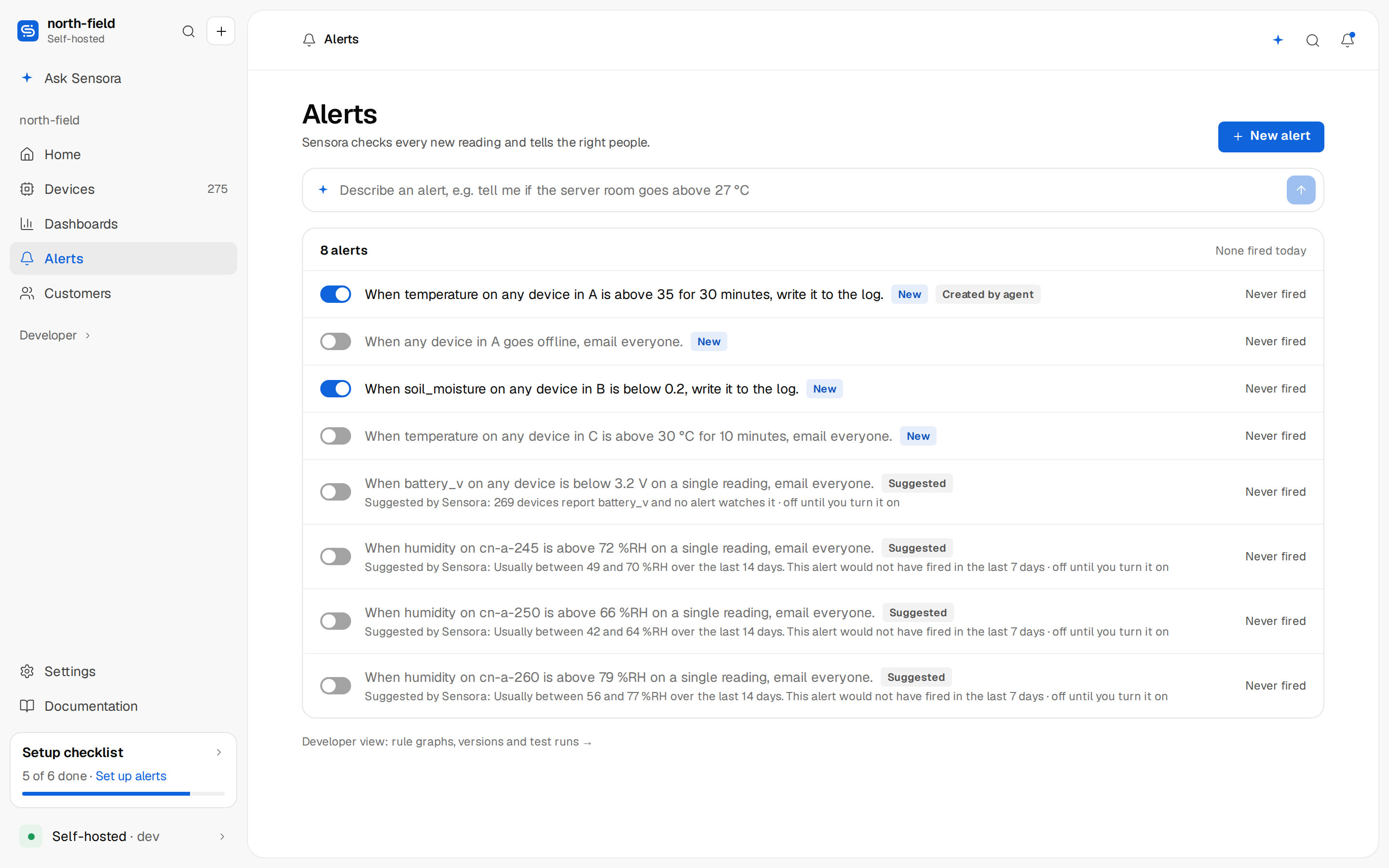
This page shows you how to create an alert that sends an email or a Telegram message when a reading crosses a value or a device goes offline, and how to check it against last week's readings first.
Alerts and rules
An alert is a rule. The Alerts page lists your rules, each as one plain sentence with an on/off switch. New alert builds a rule of one fixed shape: a device trigger, one condition, and a notification by email or Telegram.
For anything that shape cannot say, such as several branches, a schedule, a webhook or a log line, use the rule editor under Developer › Rules. To change an alert after you created it, select its sentence on the Alerts page. It opens in the rule editor.
Create an alert
Open Alerts and select New alert.
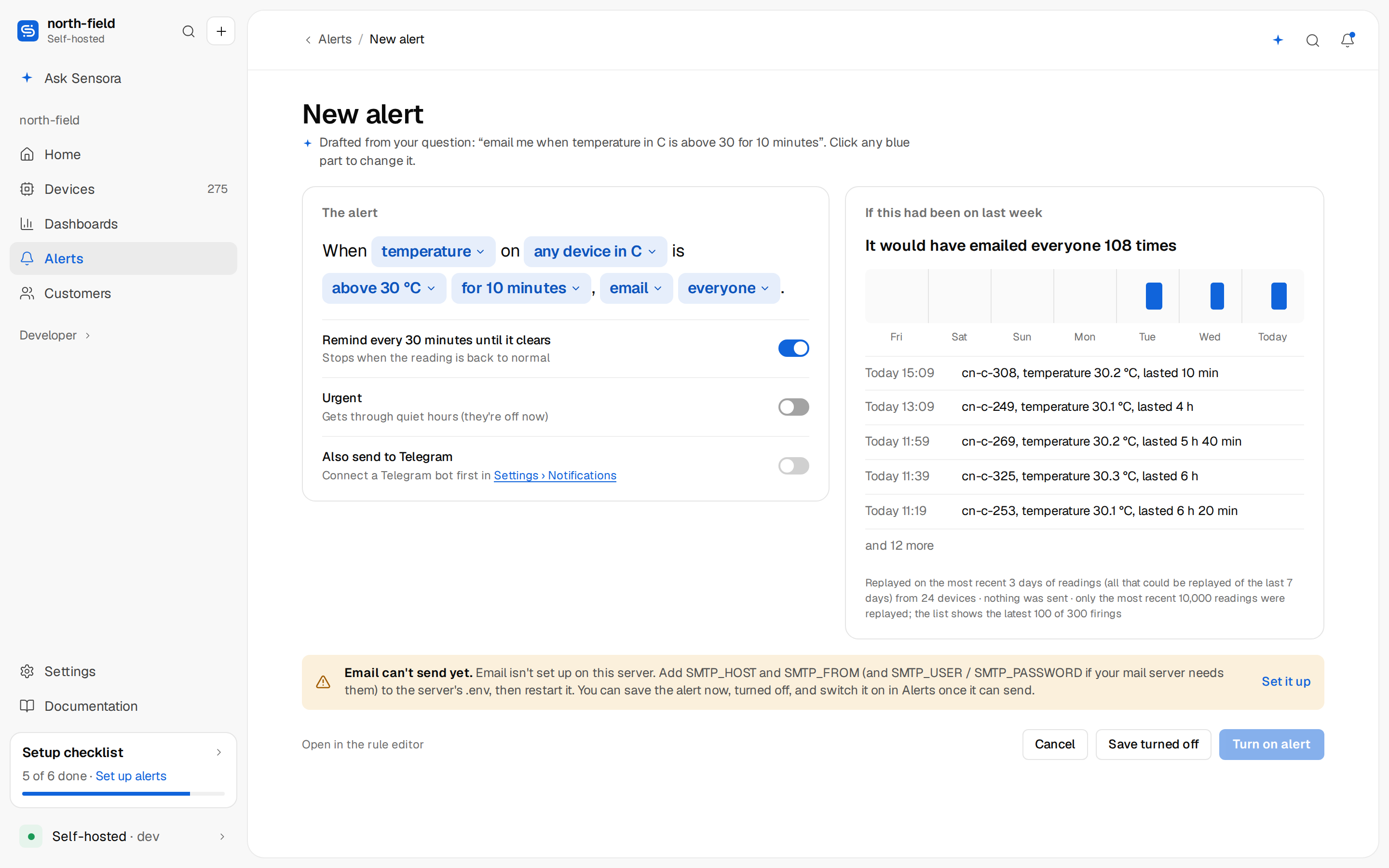
Select a blue part of the sentence to change it.
Blue part Choices The reading A metric your devices report, or a name you type Which devices Any device, every device in one site, every device with one template, or one device The condition Above or Below a value, or goes offline How long on a single reading, or for 5, 10, 15 or 30 minutes, or 1 hour How to tell Email or Telegram message Who Everyone on the channel's recipient list, or one recipient Set the switches under the sentence. The remind switch does not show for goes offline.
Switch On Off Remind every 30 minutes until it clears Tells you when it starts, then every 30 minutes while it lasts Tells you when it starts, then once a day while it lasts Urgent Sent even during quiet hours Held during quiet hours, then sent in one summary Also send to Telegram / Also send an email Everyone on the other channel's list gets it too Only the chosen channel is used Read the preview on the right.
Select Turn on alert. Nothing is saved or sent before this.
If the channel cannot send yet, Turn on alert is disabled, as in the picture below. Select Save turned off, set up the channel, then switch the alert on. See Notifications.
Describe an alert in plain words
Type a sentence in Describe an alert on the Alerts page and press Enter. New alert opens with the sentence already filled in.
Sentences are read by a fixed parser, not by an AI model, so this works without a model key. These shapes work:
when temperature on cn-a-245 is above 30, email me
telegram me if temperature in C is below 5 for 10 minutes
when battery_v on any device is below 3.2, email me
email me when cn-a-245 goes offline
email me when any device goes offline- The reading is a metric name, for example
temperatureorbattery_v. - The place is the name of a device, the name of a site after "in", or "any device".
- The comparison is "above" or "below" a number, with an optional unit such as
°Cor%. - "for 10 minutes" is optional.
- The action is "email me" or "telegram me", before or after the condition.
Read the draft before you turn it on
The parser can attach a meaning to a word you did not intend. With a site named "A", it reads the word "a" in "when a device goes offline" as that site. Write "any device" when you mean every device, and check each blue part of the drafted alert, most of all Which devices and How long.
A sentence needs an action. Schedules such as "every day at 8" cannot be drafted. Create a rule with a Schedule trigger instead. When a sentence cannot be drafted, the page says why and starts from a default alert.
The parser is also available as POST /api/rules/draft. See API reference.
The preview
The card If this had been on last week replays the alert over the readings stored in the last 7 days. It runs again each time you change the sentence. Nothing is sent.
- The headline says how many messages it would have sent, for example "It would have emailed everyone 108 times".
- The strip and the list show when, for which device, and how long each stretch lasted.
- A warning line appears when the result looks wrong, for example "That is more messages than people keep reading."
- A replay reads at most 10,000 readings. With many devices that can be less than 7 days, and the small print then says how many days were covered.
For more, see Test a rule.
"For N minutes"
With a duration, the alert fires only when every stored reading of the device in that time matches.
The device must report at least as often as the duration. A device that reports every 15 minutes cannot show that a value held "for 5 minutes", so that alert never fires.
"Goes offline" has no duration. The template of a device sets when it counts as offline. See Offline detection.
Suggested alerts
The Alerts list can end with rows tagged Suggested. Sensora drafts them from your own devices: an offline alert, a low battery alert, and up to three thresholds a little outside the usual range of one device. The line under a suggestion says why, for example "Usually between 49 and 70 %RH over the last 14 days. This alert would not have fired in the last 7 days".
A suggestion is not a rule until you switch it on. Switching it on creates the rule and turns it on. Suggestions use email, so set up email first.
Turn alerts on and off
Use the switch at the start of each row. After a change, a message at the bottom of the page offers Undo. An alert that is off keeps its settings and its history.
The text at the right of a row says when the alert last fired. A row can carry tags:
- New: created in the last 24 hours.
- Created by agent, Changed by agent or Change proposed by agent: an AI agent wrote or changed it, and it waits for you. See Approvals.
- A warning such as Sends too many messages: the weekly check found a problem. See Rule health.