
Approvals
This page shows you how to review what an agent proposed, how to approve or discard it, and what Sensora keeps on record.
An agent that works through the MCP tools cannot start a rule running. It leaves one of two things for you to approve:
| The agent... | What is saved | What you see in the Rules list |
|---|---|---|
| writes a new rule, or changes the steps of a paused rule | A paused rule, with a backtest stored as evidence | The tag Created by agent · paused until you turn it on or Changed by agent · paused until you turn it on |
| changes the steps of a rule that is on | A proposal beside the rule. The rule keeps running as it is | The tag Change proposed by agent |
A backtest replays a rule over the stored readings and reports how often it would have fired. Sensora runs it over the last 7 days when the agent saves. See Test a rule.
Approve a rule that an agent wrote
Turning the rule on is the approval.
Open Rules and select the name of the rule. The strip above the canvas shows the description that the agent wrote and the stored backtest.
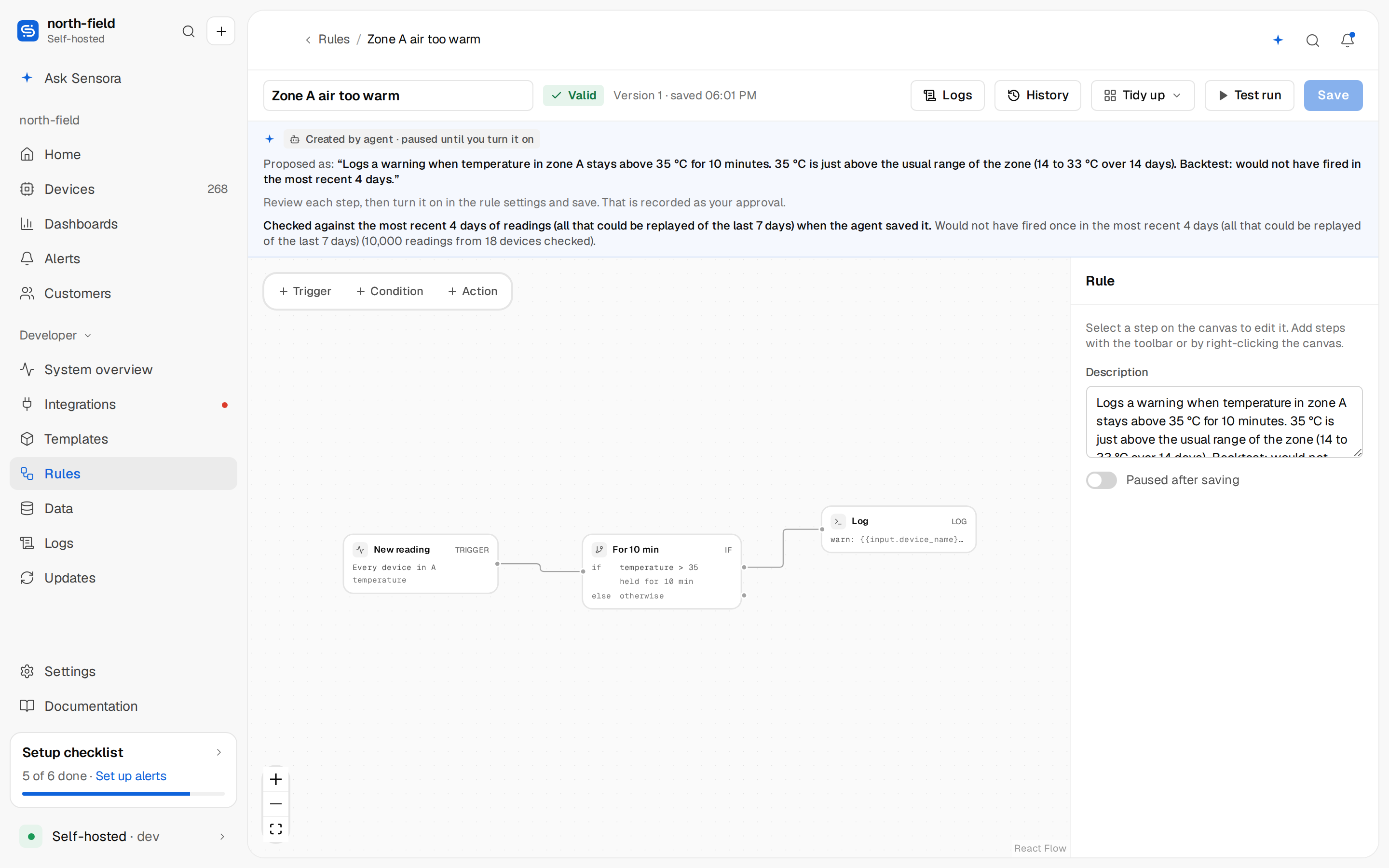
Review each step on the canvas. To try the rule, select Test run.
In the Rule panel on the right, switch Paused after saving on. It now reads On after saving.
Select Save. The rule starts running, and Sensora records your approval.
You can also switch the rule on in the Rules or Alerts list. Sensora then first shows the stored backtest in a dialog. Approve and turn on starts the rule and records your approval. Review it first opens the rule.
If no backtest could be stored, the page says so. Replay the rule from Test run before you turn it on.
To reject the rule, leave it paused, or select Delete rule in the menu at the end of its row in the Rules list.
Approve or discard a change to a running rule
Open the rule. The proposal is at the top of the page.
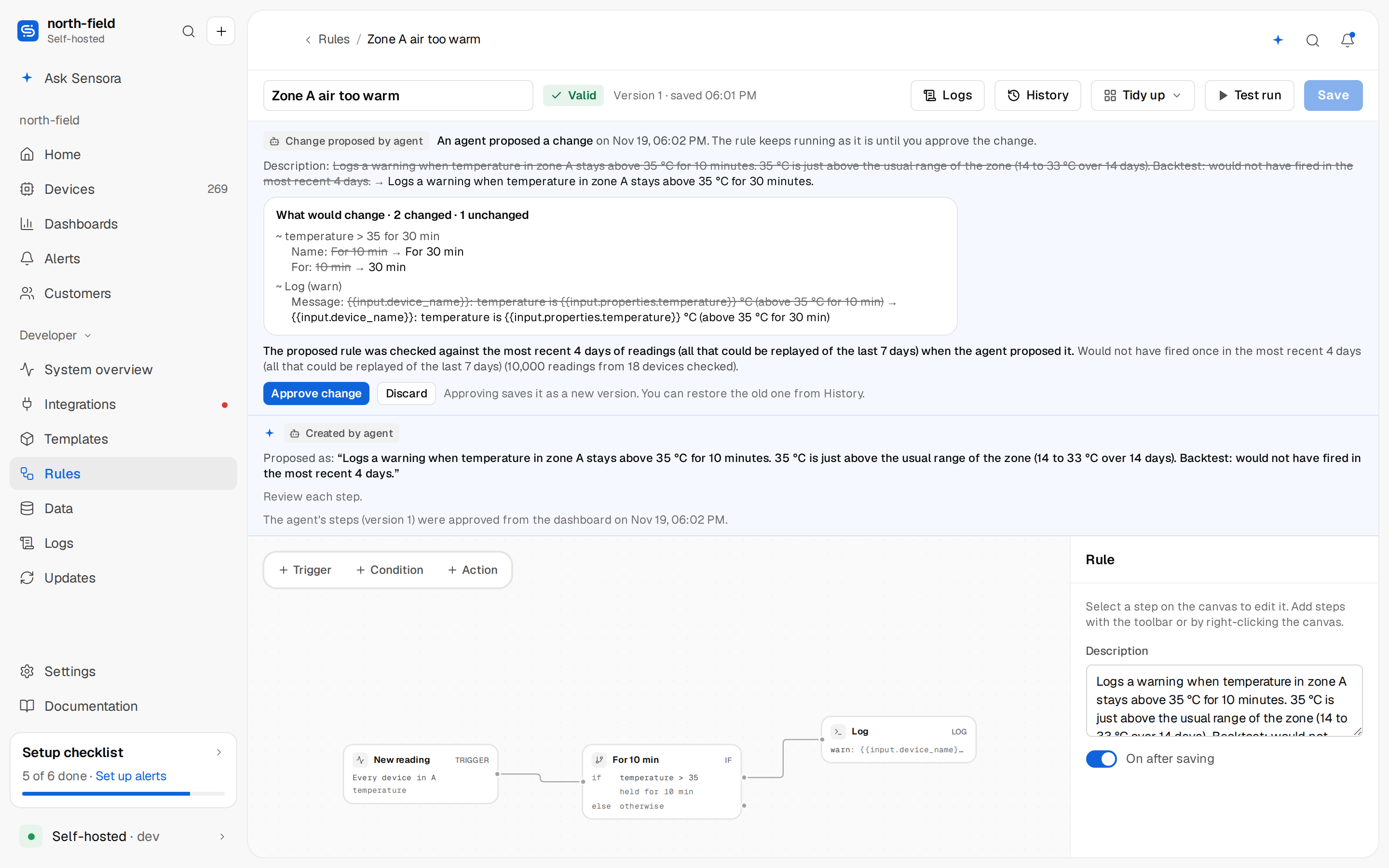
Read What would change. It lists each step that is added, removed or changed, with the old and the new value.
Read the backtest line. It says how the proposed rule did against the stored readings when the agent proposed it.
Choose one:
- Approve change saves the proposal as the next version of the rule. A rule that is on now runs the new version. Sensora runs the backtest again and records it with your approval.
- Discard removes the proposal. The rule is unchanged.
After you approve, you can go back: open History and restore the earlier version.
A few rules apply to proposals:
- A rule has one open proposal. If the agent proposes again, the new proposal replaces the old one.
- You approve exactly the proposal you read. If the agent replaced it in the meantime, nothing is approved.
- If someone saves the rule after the agent proposed, the proposal is out of date. Approving it would undo that save, so you can only discard it. Ask the agent to propose the change again.
- If the proposed rule cannot run yet, for example because it notifies a channel that is not set up, the page lists what to fix. The proposal is kept.
What an agent can change without approval
Two changes take effect at once, because they do not change what a rule does:
- A new name or description, sent without new steps.
- Pausing a rule. An agent cannot pause the system rule "Store telemetry".
What is stored with each version
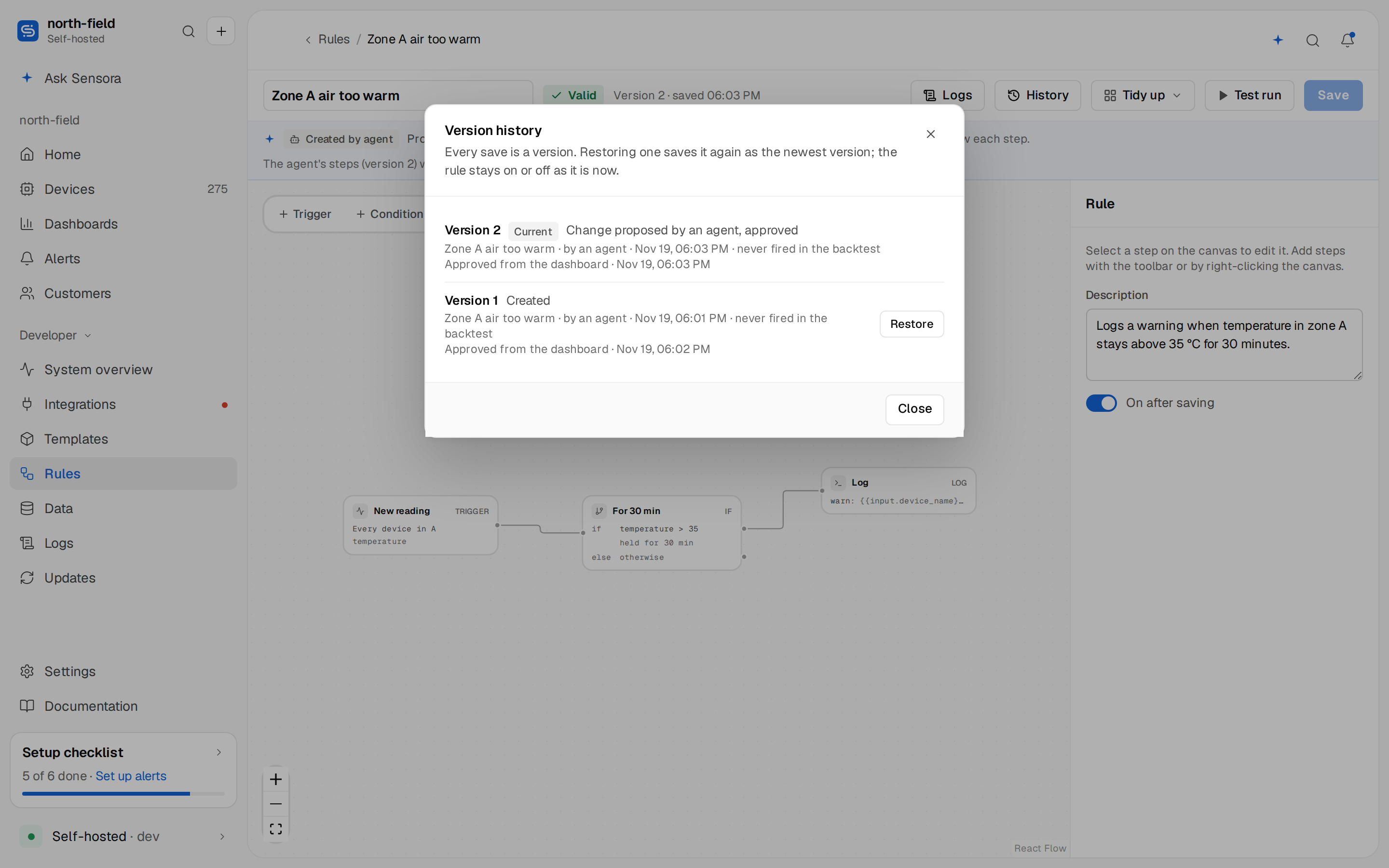
Every save of a rule's name, description or steps is a version. Open a rule and select History.
| Stored | Meaning |
|---|---|
| Version number and time | When the version was saved |
| Who saved it | by a person or by an agent |
| Summary | For example "Created", "Edited" or "Change proposed by an agent, approved" |
| Backtest | The result of the backtest that was stored when an agent saved the version. A version that you save in the editor has none |
| Approval | "Approved from the dashboard" or "Approved from the API with an admin key", and when |
The Logs of the rule also record each proposal, approval and discard.
Sensora has no user accounts, so the record never names a person.
Approval follows the steps
What you approve is the steps of a rule: the trigger, the conditions, the actions and how they are connected.
- If you rename an agent's rule, edit its description or move steps on the canvas, the rule still waits for approval.
- If you change a step in the editor and save, the new version is yours. It does not wait for approval.
- Restoring a version from History keeps the rule on or off as it is now. If the rule is on and you restore a version that an agent wrote and nobody approved, that version starts running and the restore is recorded as your approval.
Who can approve
| Who | Can approve |
|---|---|
| A person in the dashboard | Yes |
| A script with an Admin API key | Yes. It is recorded as approved with an admin key |
| A script with a Write key | No. The answer is status 403 with the error needs_a_person. A Write key can discard a proposal and can pause a rule |
| A script with an Agent or Read key | No. The answer is status 403 with the error forbidden |
| An agent over MCP, with any key | No. No tool turns a rule on or approves a proposal |
On an open instance, anyone on the network can approve
A new instance has no dashboard password and no API keys. Every HTTP request is then treated like the dashboard. Any program that can reach the instance can turn a rule on with one HTTP call, and the record says "dashboard". The MCP tools still cannot. Approval is a step that only you can take when the instance is locked: set a dashboard password and give agents an Agent key. See Security and Connect an agent.
A script with an Admin key uses the rule endpoints in the HTTP API reference.