
Notifications
This page shows you how to let Sensora send email and Telegram messages, choose who receives them, and stop one problem from sending many messages.
Email and Telegram are the two built-in channels. For anything else, such as Slack, use a webhook.
Before you set anything up
A self-hosted instance sends nothing until you connect your own mail server or Telegram bot. Open Settings › Notifications. On a new instance both channels read Not set up.
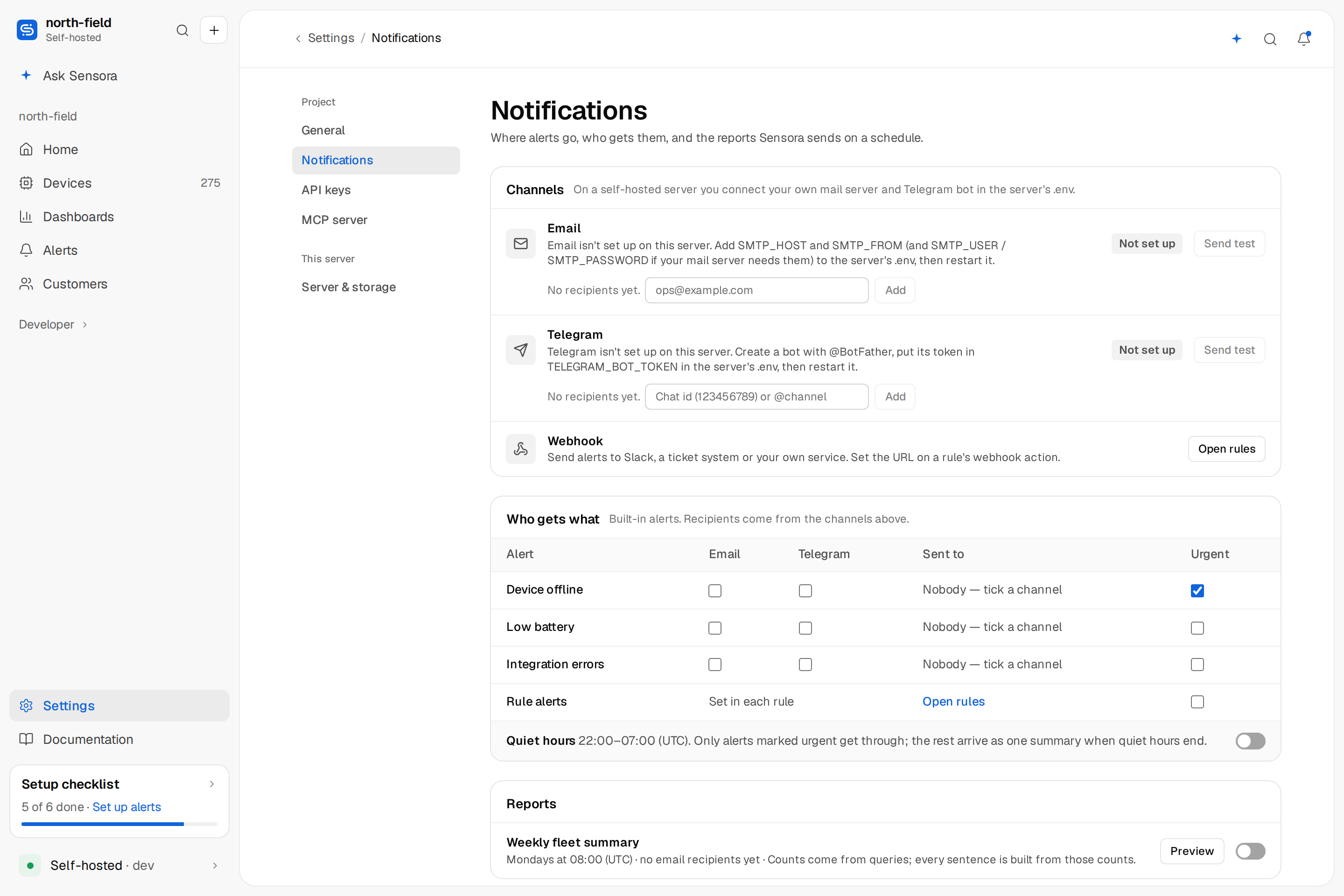
A channel can send when the server has its credentials and the channel has at least one recipient. Until then, turning on a rule that notifies on that channel is refused, with the reason. You can still save and test the rule turned off.
Set up email
Sensora sends email through any SMTP server.
Add the variables to the server's environment. With the bundled Docker Compose stack, that is the file
deploy/.env.iniSMTP_HOST=smtp.example.com SMTP_PORT=587 SMTP_USER[email protected] SMTP_PASSWORD=your-password SMTP_FROM="Sensora <[email protected]>"Start the stack again from the repository folder.
bashdocker compose -f deploy/docker-compose.yml up -dOpen Settings › Notifications. Type an address in the box under Email and select Add. The badge changes to Connected.
Select Send test. Every address on the list gets a message with the subject "[Sensora] Test notification". If sending fails, the page shows the error.
SMTP_HOST and SMTP_FROM are required. The others are optional. SMTP_PORT defaults to 587. Port 465 uses TLS from the first byte, and other ports upgrade with STARTTLS. To override that, see SMTP_SECURE in Configuration.
Set up Telegram
In Telegram, create a bot with @BotFather. It gives you a bot token.
Add the token to the server's environment and start the stack again, as for email.
iniTELEGRAM_BOT_TOKEN=123456789:replace-with-your-tokenEach recipient opens the bot in Telegram and presses Start.
Open Settings › Notifications, type each chat ID in the box under Telegram and select Add. The badge changes to Connected.
Select Send test.
A recipient is a numeric chat ID, for example 123456789, or a public channel such as @my_channel. The chat ID of a group is negative. Sensora does not look up chat IDs for you.
Recipients
Each channel has one list of up to 50 recipients. There are no user accounts, so a recipient is an address or a chat ID.
An alert goes to everyone on the list of its channel, unless you picked one recipient on New alert. When you remove that recipient, the alert can no longer deliver, and its log says so. Open the alert and select Send to everyone instead in its notify step.
Built-in alerts
Three alerts need no rule. Under Who gets what, tick Email or Telegram in a row to turn one on. All three start off.
| Alert | Sent when |
|---|---|
| Device offline | A device goes offline. See Offline detection |
| Low battery | A device reports a battery below 3.3 V. One message per device until it reads 3.4 V or more |
| Integration errors | An integration rejected payloads. At most one message per integration per hour |
In the Sent to column you can limit a built-in alert to some recipients. A built-in alert and a rule are separate. If Device offline is on and you also have an offline alert of your own, you get both messages.
Stop repeats with the cooldown
A condition such as "temperature above 30" is true on every reading while the problem lasts. The cooldown of a Notify step limits how often it sends.
| Setting on the Notify step | Effect |
|---|---|
| Cooldown (minutes) | After a message about a device, the step sends no further message about that device for this long. The default is 15. With 0, every matching reading sends a message |
| Start over when it clears | When the condition stops and later holds again, the step tells you at once, even inside the cooldown |
An alert made with New alert uses both: a cooldown of 30 minutes with Remind every 30 minutes until it clears on, or 24 hours with it off.
- The cooldown applies to readings. A message about a device going offline or coming back is sent for every change.
- The cooldown is kept in the server's memory. After a restart, the next matching reading sends a message.
- A Webhook step has no cooldown. It is called for every reading that reaches it.
Urgent alerts and quiet hours
Quiet hours hold back messages at night. They are off until you switch them on at the bottom of Who gets what. The default is 22:00 to 07:00 in the server's time zone, and you can change both.
During quiet hours, an alert marked Urgent is sent at once. Every other message is held. When quiet hours end, each recipient gets one summary with everything that was held.
Mark an alert as urgent with the Urgent switch on New alert, the Urgent box of a Notify step, or the Urgent box in a row of Who gets what. Device offline is urgent by default.
The message
For an alert made with New alert, Sensora writes the message, for example "cn-c-253: temperature is 31.1 °C (above 30 °C for 10 min)". In a Notify step you can write your own Subject and Message with placeholders. See Rule editor. A Telegram message is cut at 4,096 characters.
When a message does not arrive
Each recipient is tried up to three times. Open the Logs of the rule, or the Logs page with the source rules:
| Line | Meaning |
|---|---|
| Notification sent | The mail server or Telegram accepted the message |
| Held for quiet hours | It waits for the summary |
| Notification not sent | It failed. The line has the reason, for example a wrong TELEGRAM_BOT_TOKEN |
Webhooks for everything else
Add a Webhook action to a rule in the rule editor. Its settings are the URL, the Method (GET, POST, PUT or DELETE, default POST) and an optional Body Template (JSON). When the template is empty, Sensora sends this JSON:
{
  "device_uid": "dev_6bec72",
  "timestamp": 1795111541641,
  "properties": { "temperature": 31.1, "humidity": 60.1 },
  "rule_id": "a1f3c605-0319-465f-a559-c4752e732b2b"
}
A call times out after 5 seconds. Sensora retries up to three times after a network error or a 5xx answer, not after a 4xx answer. A call that still fails shows as Run failed in the rule's Logs. Custom headers cannot be set in the editor.
The weekly summary
Reports on the same settings page has a Weekly fleet summary by email, off by default. Preview shows what it would contain.