
Webhooks
A webhook integration gives you one URL that many devices, or another service, can post JSON to. This page shows how to create one, sign requests, and use the inbox when a delivery does not fit.
Use a webhook when the sender cannot hold a secret for each device, for example a gateway. A device that keeps its own uid and secret posts to /ingest and needs no integration.
Create a webhook integration
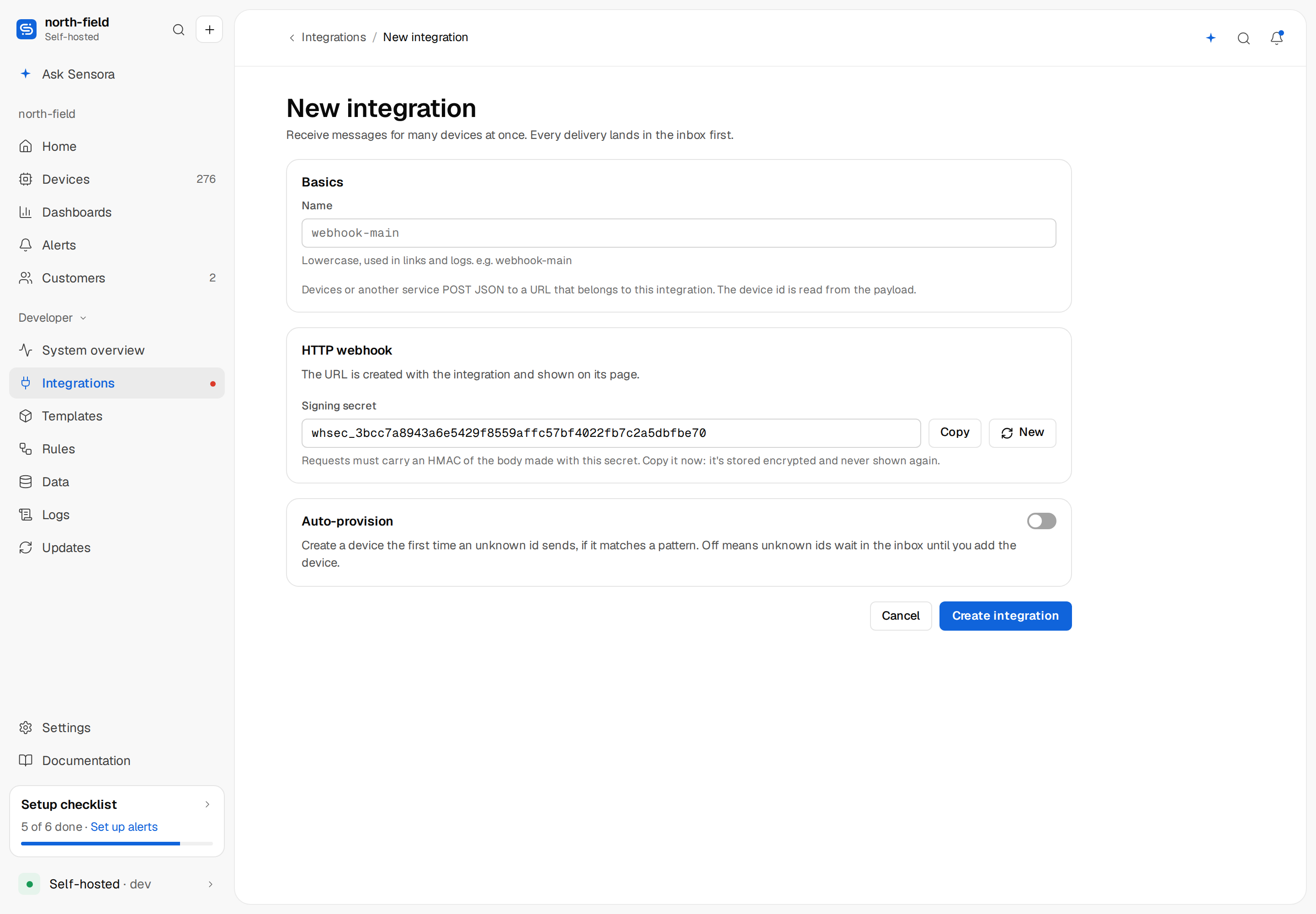
- In the dashboard, open Integrations in the Developer group of the sidebar and select New integration.
- Enter a Name. Use lowercase letters, digits and dashes, for example
webhook-main. - Copy the Signing secret. Sensora stores it encrypted and never shows it again.
- Optional: turn on Auto-provision. See Auto-provision.
- Select Create integration.
The page of the new integration shows the Webhook URL, for example http://localhost:8090/api/integrations/tok_1714a394c38eef83e7d78977/webhook. Treat the URL as a secret too.
Send a payload
Send a POST with a JSON object as the body and the signature in the X-Signature header.
The signature is the HMAC-SHA256 of the raw request body, with the signing secret as the key, written as hexadecimal.
URL='http://localhost:8090/api/integrations/tok_1714a394c38eef83e7d78977/webhook'
SECRET='whsec_3bcc7a8943a6e5429f8559affc57bf4022fb7c2a5dbfbe70'
BODY='{"device_id":"th-001","temperature":4.4,"humidity":70.9,"battery_v":3.61}'

SIG=$(printf '%s' "$BODY" | openssl dgst -sha256 -hmac "$SECRET" | sed 's/^.* //')

curl -X POST "$URL" \
  -H 'Content-Type: application/json' \
  -H "X-Signature: sha256=$SIG" \
-d "$BODY"import hashlib
import hmac
import json
import requests
URL = "http://localhost:8090/api/integrations/tok_1714a394c38eef83e7d78977/webhook"
SECRET = "whsec_3bcc7a8943a6e5429f8559affc57bf4022fb7c2a5dbfbe70"
body = json.dumps({"device_id": "th-001", "temperature": 4.4, "humidity": 70.9, "battery_v": 3.61})
signature = hmac.new(SECRET.encode(), body.encode(), hashlib.sha256).hexdigest()
r = requests.post(
URL,
data=body,
headers={"Content-Type": "application/json", "X-Signature": f"sha256={signature}"},
timeout=10,
)
print(r.status_code, r.json())Sign the exact bytes that you send. If a library formats the JSON again after you sign it, the signature no longer matches.
Responses
| Status | Body | Meaning |
|---|---|---|
200 | {"status":"done","detail":"3 datapoints → cold-room-01","device_uid":"dev_126e30af","stored":3} | A device matched and readings were stored. |
202 | {"status":"unmatched","detail":"no device matches external_id"} | No device has this id. The delivery waits in the inbox. |
422 | {"status":"failed","detail":"decoder: temperature missing"} | A device matched, but the payload has nothing to store. The delivery waits in the inbox. |
400 | {"error":"invalid_json"} | The body is not JSON. Not recorded in the inbox. |
401 | {"error":"bad_signature"} | The signature is missing or wrong. Not recorded in the inbox. |
404 | {"error":"unknown_integration"} | No integration has this token, or the integration is paused. |
429 | {"error":"rate_limited"} | Too many requests. One integration may send a burst of 100 requests, then 50 per second. |
How a payload finds its device
The device id. Sensora reads the id from the top level of the JSON object. It uses the first of these fields that holds a non-empty string: device_id, device_uid, uid, deviceId, deviceName. The id is not read from nested objects. A payload with none of these fields is recorded as Unmatched.
The device. Sensora looks for a device whose External ID or device_uid is equal to that id. You set the External ID on the Configuration tab of the device.
The search covers every device in the project, not only the devices that are linked to this integration. So anyone who can send a valid request to the webhook can store readings for any device whose id they know. Keep the URL and the signing secret private.
The values. The device's template decides which values are stored, and it can read nested fields. Without a template, every top-level number and boolean is stored. See What becomes a metric. A reading gets the time at which Sensora received the delivery.
The inbox
Every delivery with a valid signature and a JSON body is recorded in the integration's inbox. Open Integrations and select the integration to see it.
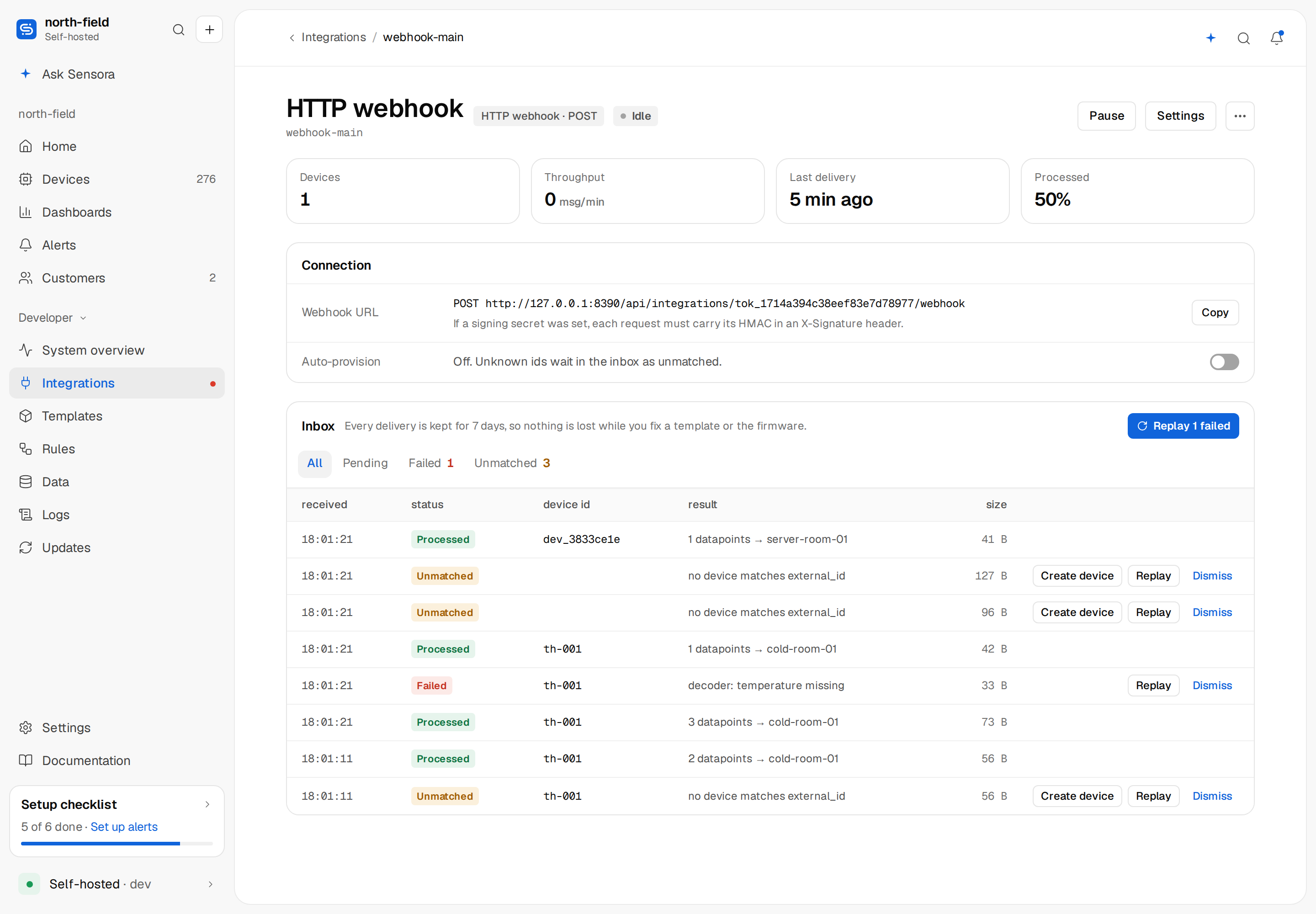
- Processed: readings were stored. Kept for 7 days.
- Failed: a device matched, but nothing could be stored. The result column says what was missing.
- Unmatched: no device has this id.
Failed and unmatched deliveries are kept until you replay or dismiss them.
The table does not show the payload itself. To read it, open Data and query the column raw_payload of the table inbox_items.
Fix and replay
A replay handles the stored payload again, with the devices and templates as they are now. The readings get the time of the replay.
- Unmatched: select Create device in the row. The Connect a device screen opens with the id filled in. Create the device, go back to the inbox and select Replay in the row.
- Failed: fix the device's template, or give the device another template. Then select Replay in the row, or Replay N failed for all failed deliveries.
- Dismiss removes a failed or unmatched delivery that you do not want.
Sensora can also tell you when an integration rejects payloads. See Notifications.
Auto-provision
With auto-provision on, Sensora creates a device the first time an unknown id arrives, if the id matches a pattern.
- ID pattern: a regular expression, for example
^th-[0-9]{3}$. Only ids that match create a device. - Device limit: the most devices that may be linked to this integration. The default is 500. When the limit is reached, new ids stay Unmatched.
- Template for new devices: optional. New devices get this template, so their first message is decoded with it.
The new device gets the id as its name and its External ID. To change these settings later, select Settings on the integration's page.
Pause, resume and delete
- Pause stops the integration. While it is paused, the URL answers
404and deliveries are not recorded. Resume turns it on again. - Delete integration… in the More actions menu removes the integration and its inbox. The devices stay.
Create a webhook with the API
curl -X POST http://localhost:8090/api/integrations \
  -H 'Content-Type: application/json' \
  -d '{"name":"webhook-main","transport":"webhook","platform":"custom","config":{"signing_secret":"whsec_3bcc7a8943a6e5429f8559affc57bf4022fb7c2a5dbfbe70"}}'
The response has the URL path in endpoint. Two things differ from the dashboard:
- Without
signing_secret, the integration checks no signature. Anyone who knows the URL can then send data. - If an integration with this name exists, the request replaces its settings.
LoRaWAN network servers
Sensora has no decoder for LoRaWAN network servers and does not decode raw payload bytes. A webhook from such a server works only if its JSON has the device id in one of the top-level fields listed above, and the readings as fields that a template can map. A message with the device id in a nested object is recorded as Unmatched. In that case, put a small relay in between that adds a top-level device_id field, signs the new body and posts it to the webhook URL.