
Remote updates
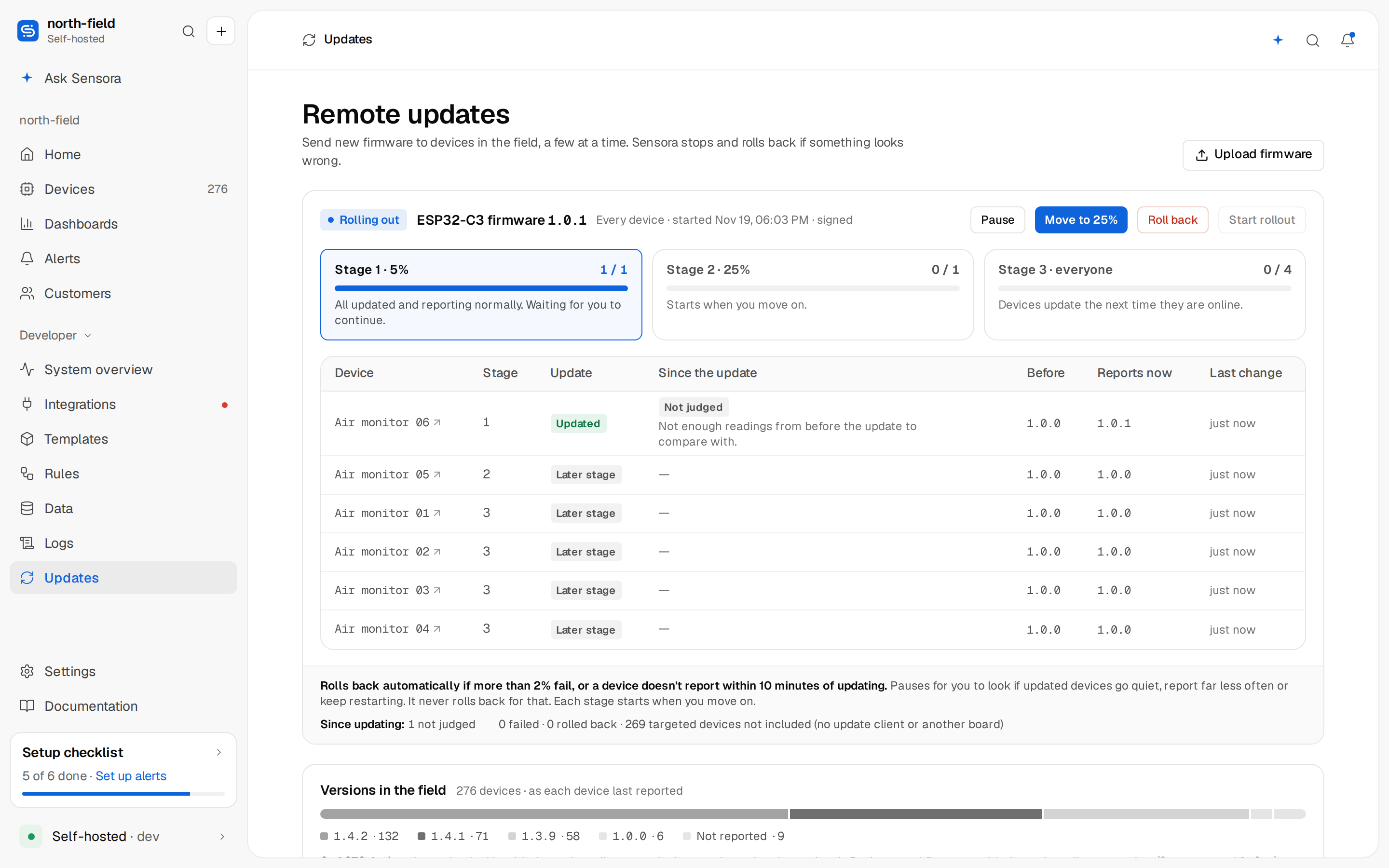
Remote updates sends new firmware to ESP32 devices. You sign the image, upload it, and roll it out in three stages: 5% of the devices, then 25%, then all of them. The screen is under Developer, then Updates.
Create the signing key
The server accepts only signed images, and each device checks the signature again before it starts one. Make the key once, on the computer where you build firmware. You need Bun and the Sensora source.
git clone https://github.com/sensoraiot/sensora.git
cd sensora/web/apps/api
bun install
bun run firmware keygen
The command writes the private key to ~/.config/sensora/ota-signing.pem and prints the public key. bun run firmware pubkey prints it again.
Keep the private key safe
Devices accept only images signed with the key that is compiled into them. If you lose the private key, you can update those devices only over USB. Back the key file up. Anyone who gets a copy can sign firmware for your devices.
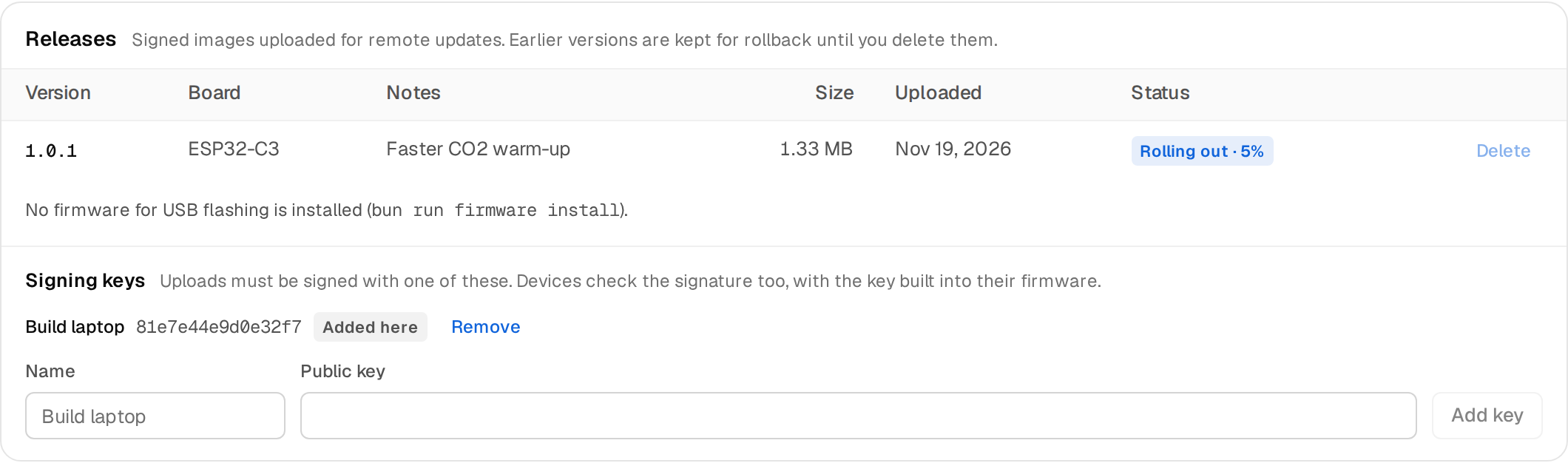
Then give the public key to the server. Under Signing keys at the bottom of the Releases card, type a name, paste the key and select Add key. Or set OTA_PUBLIC_KEYS in deploy/.env.
Build firmware that can take updates
Your firmware needs four things:
- The Sensora library on an ESP32 chip. See Arduino library. Other chips, such as the ESP8266, are not supported.
- A version. Call
Sensora.setFirmware(name, version). The version may hold letters, digits,.,+and-, up to 32 characters. - The update client with your public key. Call
Sensora.enableOta(publicKey, seconds)beforeSensora.setup(). The second value is the seconds between checks: at least 60, and0means every 6 hours. With an invalid key, the client stays off. - A partition layout with two app slots. The library's own build sets
board_build.partitions = min_spiffs.csvinplatformio.ini. The layout cannot change after a board is in the field.
#include <Arduino.h>
#include <Sensora.h>

#define FIRMWARE_VERSION "1.0.0"
#define OTA_PUBLIC_KEY "REPLACE_WITH_YOUR_PUBLIC_KEY_BASE64_44_CHARS="

void setup() {
  Sensora.setFirmware("My product", FIRMWARE_VERSION);
  Sensora.enableOta(OTA_PUBLIC_KEY, 3600);  // check every hour
  Sensora.setup();
}

void loop() {
  Sensora.loop();
}
Flash this firmware over USB once. After its first check, the device can take updates. The Versions in the field card says how many devices have checked in. All others are left out of every rollout.
The prebuilt Sensora Agent from the browser flasher has the update client only if you build it yourself with your public key. The README of the library gives the build flag.
Sign and upload a release
Build the new firmware with a new version, for example
1.0.1.Sign the app image. Give the full path of the file, because the command runs in
web/apps/api.bashbun run firmware sign ~/my-product/.pio/build/esp32/firmware.bin --version 1.0.1 --board ESP32This writes
firmware.bin.signext to the image.--versionmust be the exact version the new build passes toSensora.setFirmware().--boardis the chip family, such asESP32,ESP32-S3orESP32-C3.On the Updates screen, select Upload firmware.
Type the same Version, choose the Board, the image and the
.sigfile, and select Upload.
An image can be 4 MB at most, and a version can be uploaded once per board. Images are kept on a Docker volume of their own. See Operations for its backup.
Upload the app image only
Sign and upload firmware.bin. Never use firmware.factory.bin or another merged image. Sensora refuses a merged image for the ESP32. For chips such as the ESP32-C3 it accepts one, and a device cannot run it.
Start a rollout
- Select Start rollout.
- Choose the Release.
- Under Devices, choose Every device, One template, One site or Pick devices.
- Set the options or keep the defaults, and select Start rollout.
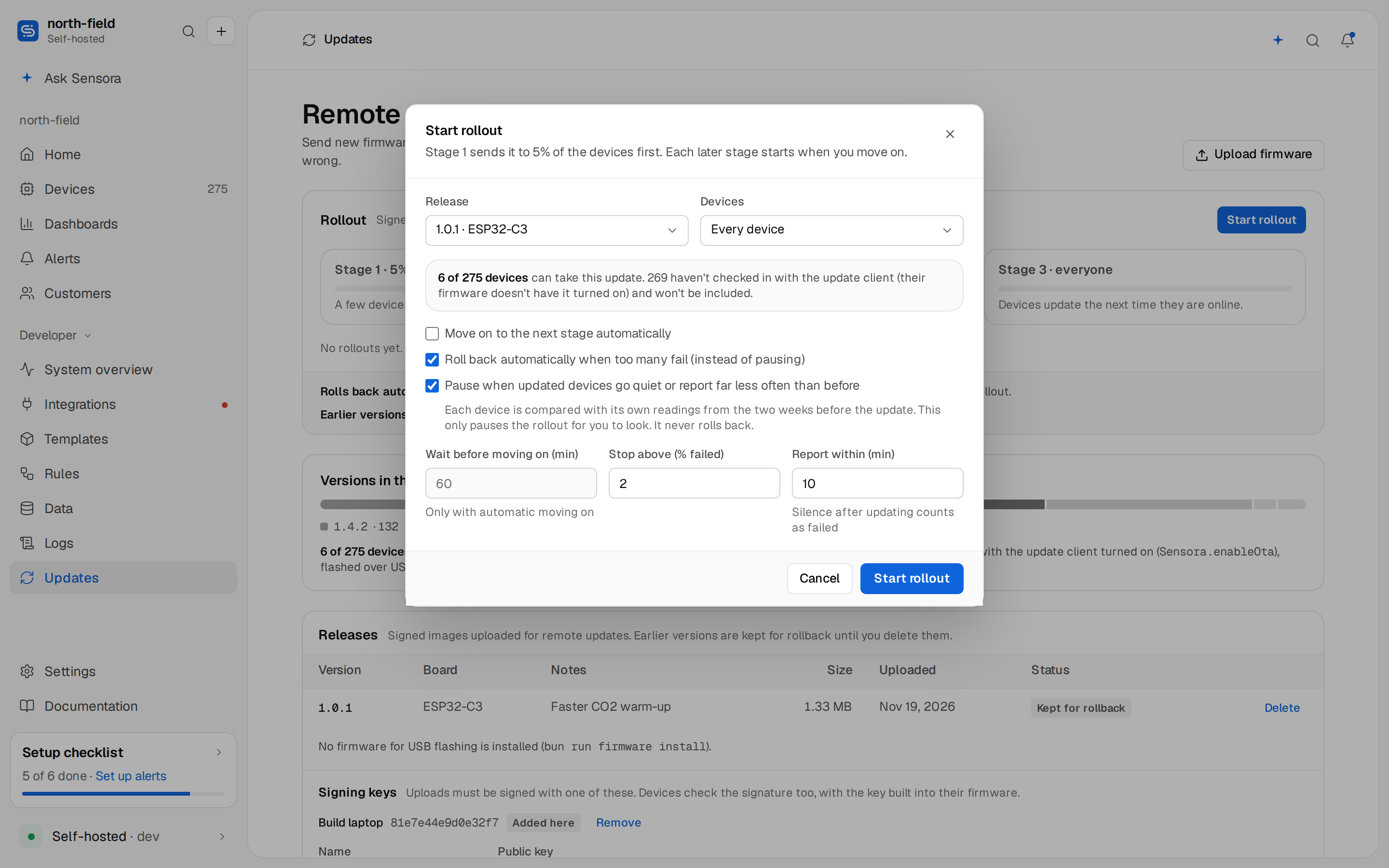
The dialog starts with these choices:
- Move on to the next stage automatically is off. You start each stage yourself with Move to 25% and Move to everyone. When it is on, the next stage starts after the Wait before moving on time (60 minutes) if failures stayed under the limit.
- Roll back automatically when too many fail is on. When it is off, the rollout pauses and waits for you.
- Pause when updated devices go quiet or report far less often than before is on.
- Stop above (% failed) is 2 and Report within (min) is 10.
Stage 1 reaches 5% of the devices in the rollout, and at least one device. Sensora decides which device is in which stage when the rollout starts. A device gets the update the next time it checks in, so a stage moves at the speed of your check interval.
Pause stops sending the update and Resume continues. Updated devices keep the new version. Only one rollout per board can be running or paused at a time.
Automatic pause and rollback
Failed updates. A device counts as failed when it reports a failure, when it starts again on the old version after it began the download, or when it does not report back within the Report within time. A failed device is not sent the same update again. When more than the Stop above share of the devices that were sent the update have failed, the rollout rolls back, or pauses if you turned automatic rollback off. With the default of 2%, one failed device out of fewer than 50 is enough.
Devices that behave differently. With the third checkbox on, Sensora compares each updated device with its own reporting in the 14 days before the update. It looks for devices that went quiet, that send fewer than half of their usual readings, or that keep restarting. The rollout pauses and names them when they are 20% or more of the updated devices that could be compared. This check never rolls back. A device with too little history shows Not judged and never causes a pause.
Roll back stops the rollout. Each device that took the update is offered the version it had before, but only if that version is an uploaded release for the same board on this server. If it is not, the device stays on the new version. So upload your first version too, and keep earlier releases.
Limits
- If your devices reach the instance over plain HTTP, the image is not encrypted on the way. The signature still protects the device from a changed image.
- The download blocks the device's main loop. The library's documentation gives tens of seconds for an image of about 1 MB.
- The dashboard cannot make a device check now.
See also Command line for the firmware commands and Configuration for the OTA_ variables.