
Connect an agent
This page shows you how to connect an MCP client to your Sensora instance. There are two ways. Both give the agent the same 35 tools.
| Way | Use it when | Key |
|---|---|---|
Over HTTP, at /api/mcp | The agent can reach the dashboard address | An agent key when the API is locked. No key while it is open |
| On the server, over stdio | The agent runs on the machine that runs Sensora | No key |
The dashboard shows the commands under Settings › MCP server.
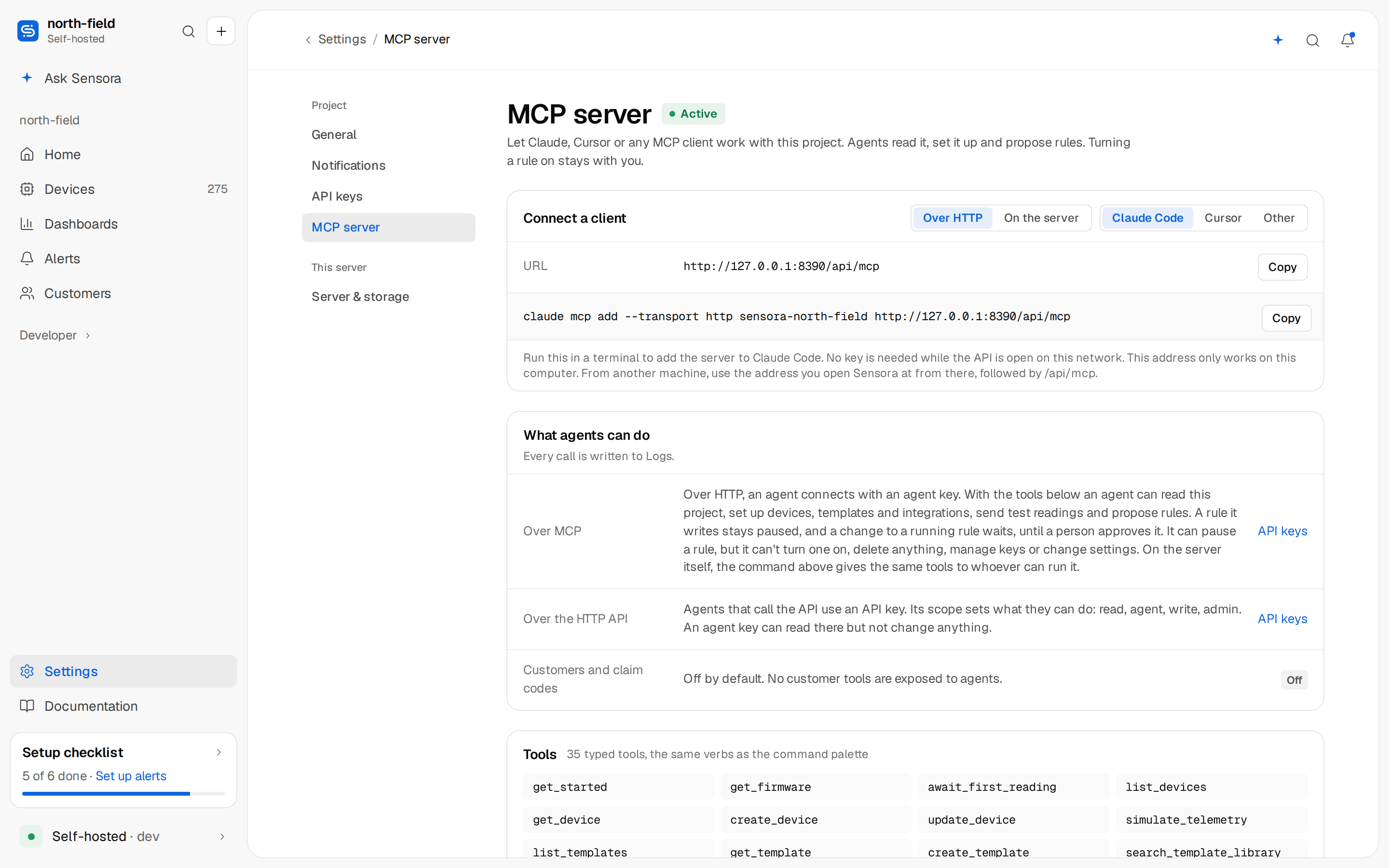
Connect over HTTP
- Open Settings › MCP server in the dashboard.
- Under Connect a client, select Over HTTP and your client: Claude Code, Cursor or Other.
- Copy the command or the configuration and use it as shown below.
- If it contains
YOUR_AGENT_KEY, replace that with an agent key. See Create an agent key.
The address is the address of your dashboard followed by /api/mcp. From another machine, use the address that you open the dashboard at from there, for example http://192.168.1.20:8090/api/mcp.
The bundled stack serves plain HTTP. If the agent is outside your own network, put the instance behind HTTPS first. See Security.
Claude Code
Run this in a terminal:
claude mcp add --transport http sensora http://localhost:8090/api/mcp --header "Authorization: Bearer YOUR_AGENT_KEY"On an open instance, leave out --header and what follows it. The Settings screen writes the server name as sensora- followed by your project name.
Cursor
Add this to .cursor/mcp.json. On an open instance, leave out the headers block.
{
  "mcpServers": {
    "sensora": {
      "url": "http://localhost:8090/api/mcp",
      "headers": {
        "Authorization": "Bearer YOUR_AGENT_KEY"
      }
    }
  }
}
Any other MCP client
The transport is Streamable HTTP. Send the key as a header.
http://localhost:8090/api/mcp
Authorization: Bearer YOUR_AGENT_KEY
For Claude Desktop, the Settings screen only gives the stdio configuration from the next section.
Connect on the server, over stdio
The stdio server runs inside the app container and uses the same database as the API. It needs no key. Whoever can run this command on the server gets the tools:
docker compose -f /path/to/sensora/deploy/docker-compose.yml exec -T app bun run mcpReplace /path/to/sensora with the folder where you cloned the repository. The -T option is required.
For Claude Code:
claude mcp add sensora -- docker compose -f /path/to/sensora/deploy/docker-compose.yml exec -T app bun run mcpFor Claude Desktop, add this to claude_desktop_config.json. For Cursor, add it to .cursor/mcp.json.
{
  "mcpServers": {
    "sensora": {
      "command": "docker",
      "args": ["compose", "-f", "/path/to/sensora/deploy/docker-compose.yml", "exec", "-T", "app", "bun", "run", "mcp"]
    }
  }
}
Use the full path to the compose file
The Settings screen shows this command with the relative path deploy/docker-compose.yml. That path only works when the client starts the command from the repository folder. Claude Desktop and Cursor usually do not. Write the full path, as in the examples above.
When you need a key
A new instance is open: it has no dashboard password and no API keys, and anyone who can reach the address can use the API and the MCP endpoint without a key.
The API is locked when a dashboard password is set, when the API_KEYS variable is set, or when at least one key exists under Settings › API keys. The agent then needs a key. An agent cannot sign in with the dashboard password. Before you lock an instance, read Security.
Create an agent key
An agent key is an API key with the scope Agent. Over MCP it can call every tool. Over the HTTP API it can only read.
The first key locks the API
If your instance is open, creating the first key locks it. From then on every browser, script and agent needs a key. The first key must be an Admin key. The dashboard selects that scope for you, and the browser you use keeps access with that key. Other browsers show API key required and ask for a key. Devices are not affected. They send data with their own id and secret.
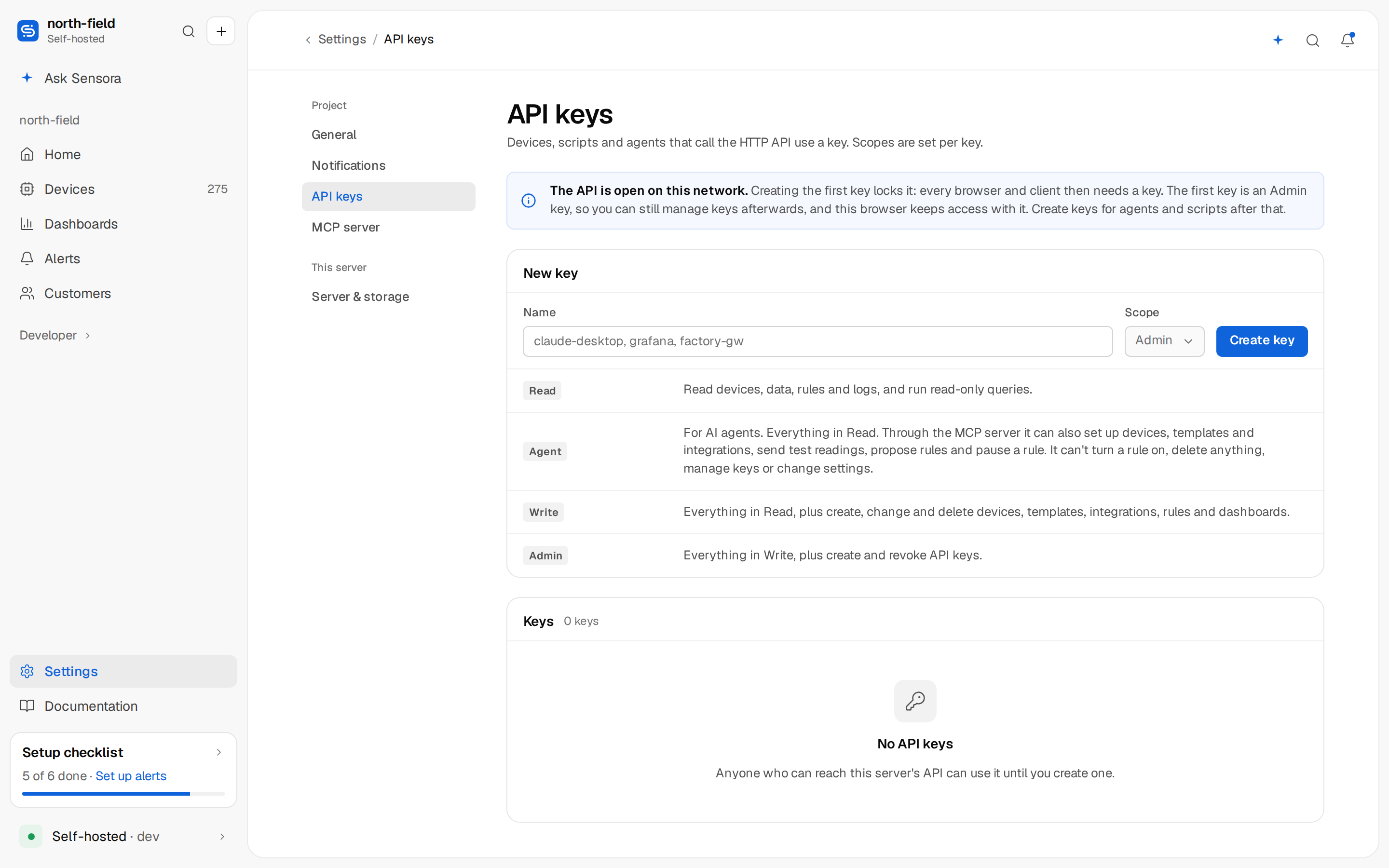
- Open Settings › API keys.
- If the banner says "The API is open on this network", create an Admin key first. Type a name, for example
admin, and select Create key. Copy the key and store it safely. This is the only time it is shown. - Under New key, type a name that says who uses the key, for example
claude-code. - Set Scope to Agent.
- Select Create key.
- Copy the key. It starts with
sk-api-. This is the only time the full key is shown. - Put the key in your client's setup in place of
YOUR_AGENT_KEY.
The name of the key appears in the call log, for example by agent key "claude-code". Give each agent its own key. You can then tell the agents apart, and Revoke stops one at once.
A Write or Admin key also works on the MCP endpoint, but it can change and delete things over the HTTP API. A Read key is refused. See API keys and scopes.
Check the connection
Test the endpoint with curl first. On a locked instance, add -H "Authorization: Bearer YOUR_AGENT_KEY".
curl -s -X POST http://localhost:8090/api/mcp \
  -H "Content-Type: application/json" \
  -H "Accept: application/json, text/event-stream" \
  -d '{"jsonrpc":"2.0","id":1,"method":"tools/list"}'
The answer is one JSON object with the 35 tools. Then ask your agent to call get_started. That tool needs no arguments and returns the setup path.
An agent can read http://localhost:8090/llms.txt without a key. It describes how to connect and lists every tool.
Troubleshooting
| What you see | Meaning and what to do |
|---|---|
| The address works on the server but not from another machine | localhost only works on the machine that runs Sensora. Use the address of that machine |
Status 401 unauthorized | The server needs a key and got none, or the key is mistyped, cut short or revoked |
Status 403 forbidden | The key is valid but its scope is Read. Connect with an Agent key |
Status 405 on GET | Expected. The endpoint only accepts POST and has no event stream and no session |
| Status 429 | The agent passed the limit of 60 calls at once, then 5 calls a second, for each key. Wait a second |
| Status 400 or 413 | One request can hold at most 20 JSON-RPC messages and 1 MB |
| The stdio command exits at once | Check that the containers run, that the path after -f is a full path, and that the command has -T |