
Templates
A template tells Sensora what one kind of device sends: which fields, in which units, and where each value sits in the JSON payload. You can add one from the built-in library, let Sensora propose one from a sample payload, or make your own.
What a template does
- It picks the fields. Only the fields that the template lists are stored. Each one is read from its source path, which can point into nested JSON.
- It names them and gives them units. The unit is stored with every reading.
- It sets the offline window. A device counts as offline when it is silent for longer than Offline after. See Offline devices.
Many devices can share one template. A device does not need one. Without a template, Sensora stores every top-level number and boolean in the payload under the name of its field, without a unit, and the device counts as offline after 60 minutes of silence.
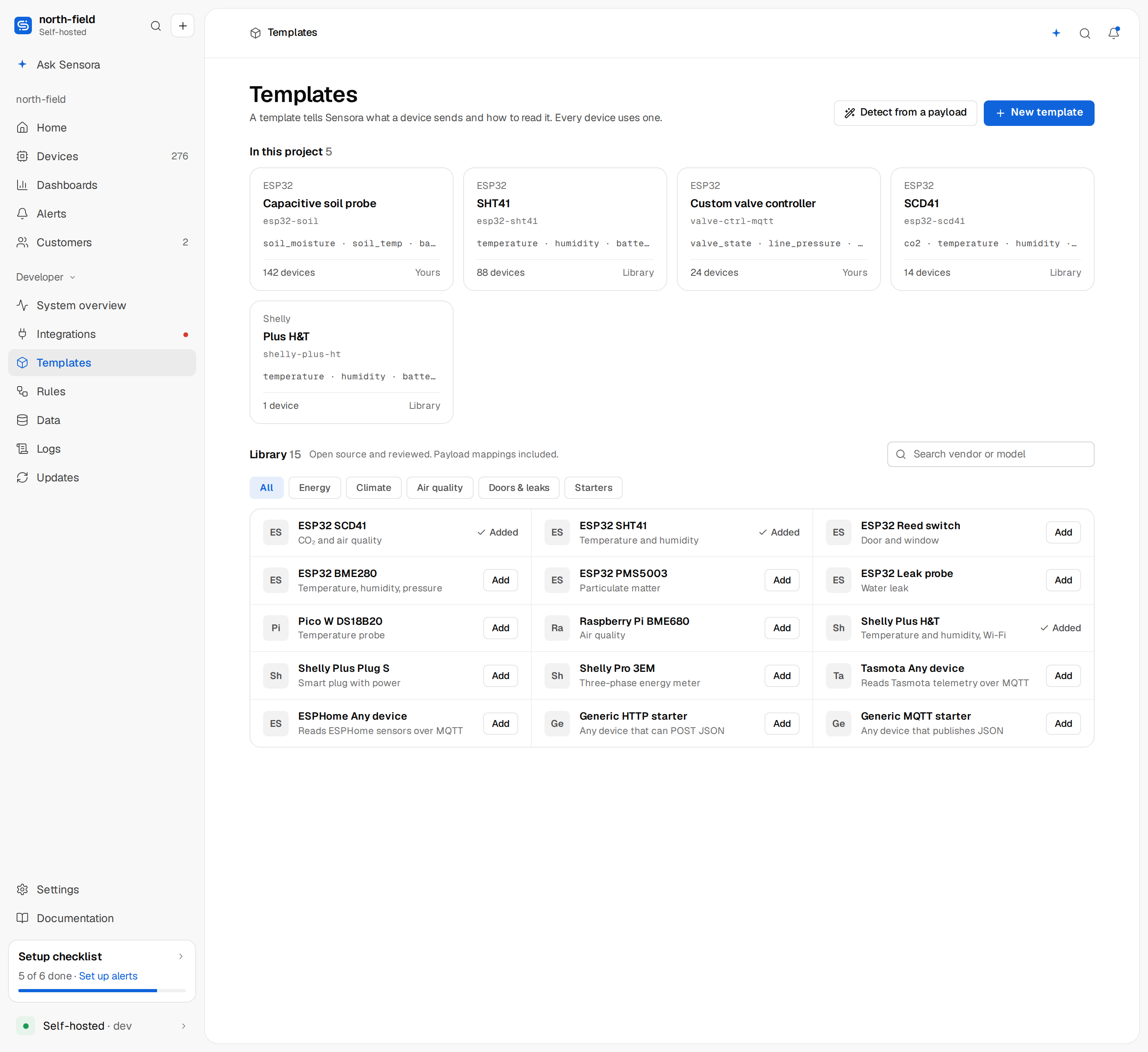
Templates are in the dashboard under Templates, in the Developer group of the sidebar.
The fields of a template
A template has a name (Vendor or board and Model or sensor), a Template id that you cannot change later, the Offline after (minutes) value, a Sample payload and a list of Fields. Each field has an identifier (the metric name), a unit, a type and a source path.
A source path is the list of keys that leads to the value, joined with dots. There are no wildcards, and a key that contains a dot cannot be addressed.
| Payload | Source path | Stored value |
|---|---|---|
{"temperature": 21.4} | temperature | 21.4 |
{"state": {"pressure_kpa": 214.5}} | state.pressure_kpa | 214.5 |
{"readings": [{"value": 7}]} | readings.0.value | 7 |
Sensora stores numbers. true and false are stored as 1 and 0, and text that holds a number, such as "21.4", is stored as the number. Other text is skipped.
If a message has none of the template's fields, nothing is stored. A direct HTTP request then gets the answer 422, and a webhook or MQTT delivery is marked Failed in the inbox.
Add a template from the library
Sensora has a built-in library of 15 templates.
- Open Templates.
- Scroll to Library. Use the category buttons or the search box to find the entry.
- Select Add. The template now appears under In this project, marked Library.
A template from the library is a copy. You can edit it like your own. An entry is a payload mapping only and does not install firmware on a device. Your device must send a payload in the shape of the entry's sample, or you change the source paths to fit.
| Template | Id | Payload it reads | Offline after |
|---|---|---|---|
| ESP32 SCD41 | esp32-scd41 | Flat JSON | 15 min |
| ESP32 SHT41 | esp32-sht41 | Flat JSON | 15 min |
| ESP32 BME280 | esp32-bme280 | Flat JSON | 15 min |
| ESP32 PMS5003 | esp32-pms5003 | Flat JSON | 15 min |
| ESP32 Reed switch | esp32-door | Flat JSON | 60 min |
| ESP32 Leak probe | esp32-leak | Flat JSON | 60 min |
| Pico W DS18B20 | picow-ds18b20 | Flat JSON | 15 min |
| Raspberry Pi BME680 | rpi-bme680 | Flat JSON | 15 min |
| Shelly Plus H&T | shelly-plus-ht | The device's MQTT status message | 6 h |
| Shelly Plus Plug S | shelly-plus-plug-s | The device's MQTT status message | 15 min |
| Shelly Pro 3EM | shelly-pro-3em | The device's MQTT status message | 15 min |
| Tasmota Any device | tasmota-sensor | The Tasmota SENSOR message over MQTT, mapped for a BME280 | 15 min |
| ESPHome Any device | esphome-mqtt | One JSON message per interval over MQTT | 15 min |
| Generic HTTP starter | generic-http | Flat JSON | 60 min |
| Generic MQTT starter | generic-mqtt | A JSON object with the values under state, over MQTT | 60 min |
Flat JSON means a payload such as {"co2": 812, "temperature": 23.1}. After you add an entry, its page shows the sample payload. The MQTT entries need an MQTT integration. See Devices with their own topic layout.
Detect a template from a payload
Open Templates and select Detect from a payload.
Paste one message as JSON and select Propose fields.
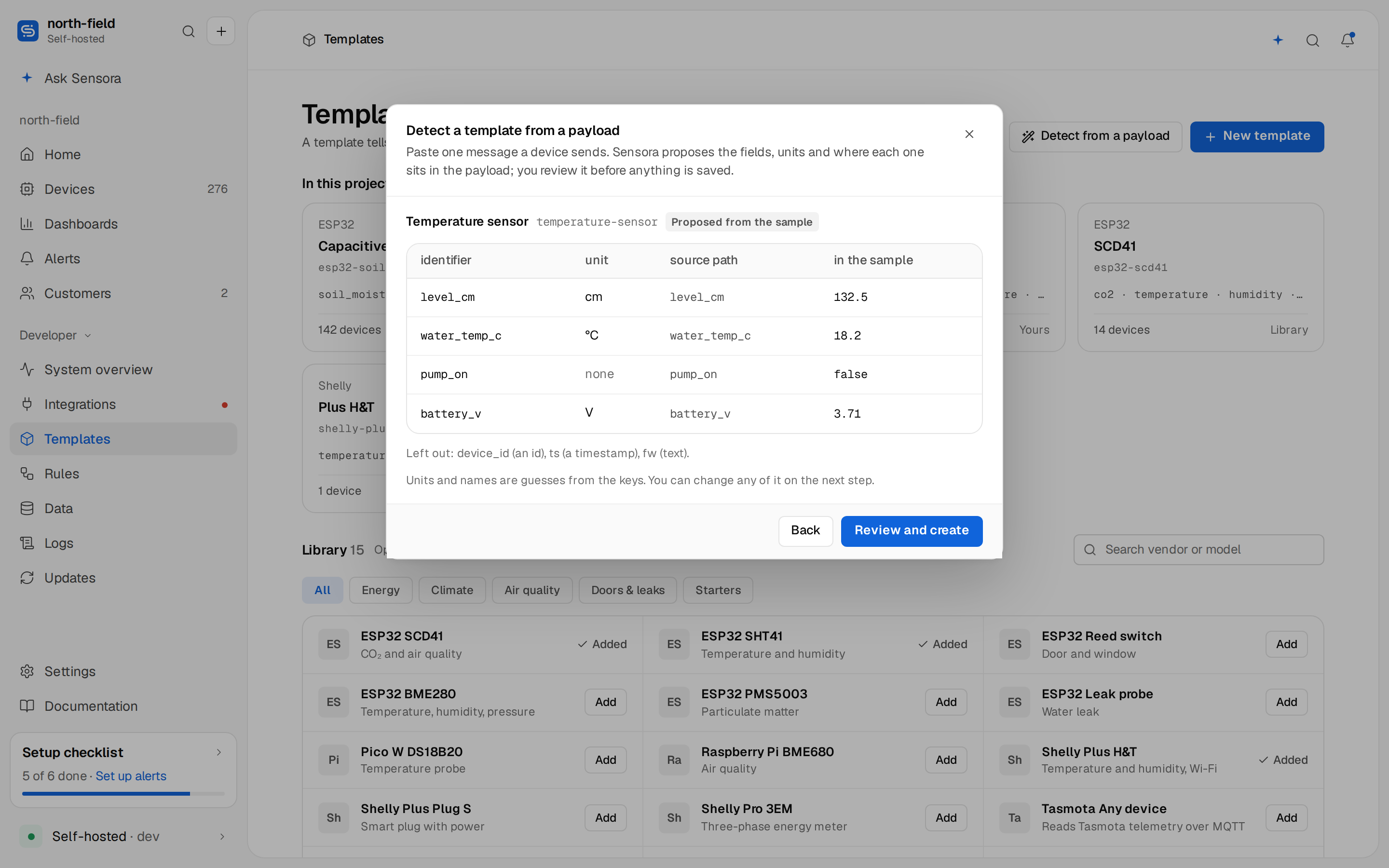
Check the proposal. It lists each field with its unit, its source path and the value in the sample. Below the table it says what was left out.
Select Review and create. The New template form opens with the proposal filled in.
Correct the names, the units and the Template id where needed, then select Create template.
Nothing is saved before the last step.
The proposal comes from fixed rules on the keys and values of your sample. No AI model is involved. Every number, boolean and text that holds a number becomes a field, also in nested objects. Units are guessed from the key: level_cm gets cm. Ids, timestamps and other text are left out. The proposal is a guess, so check each line.
Make your own template
- Open Templates and select New template.
- Enter Vendor or board and Model or sensor, and set Offline after (minutes).
- Paste one real message into Sample payload.
- Select Read fields from the sample to add a row for each value in the sample, or select Add field and fill in the rows yourself.
- Check the column from the sample. It shows what would be stored for each row.
- Select Create template.
Give a template to a device
- When you create a device, pick it under Template on the Connect a device screen.
- For a device that exists, change Template on the Configuration tab of the device.
- For devices that an integration creates by itself, see Auto-provision.
A board that you set up over USB gets a template without your help. See What Sensora creates for the board.
Edit or delete a template
Open the template and select Edit template. The change applies from the next message. Readings that are already stored do not change.
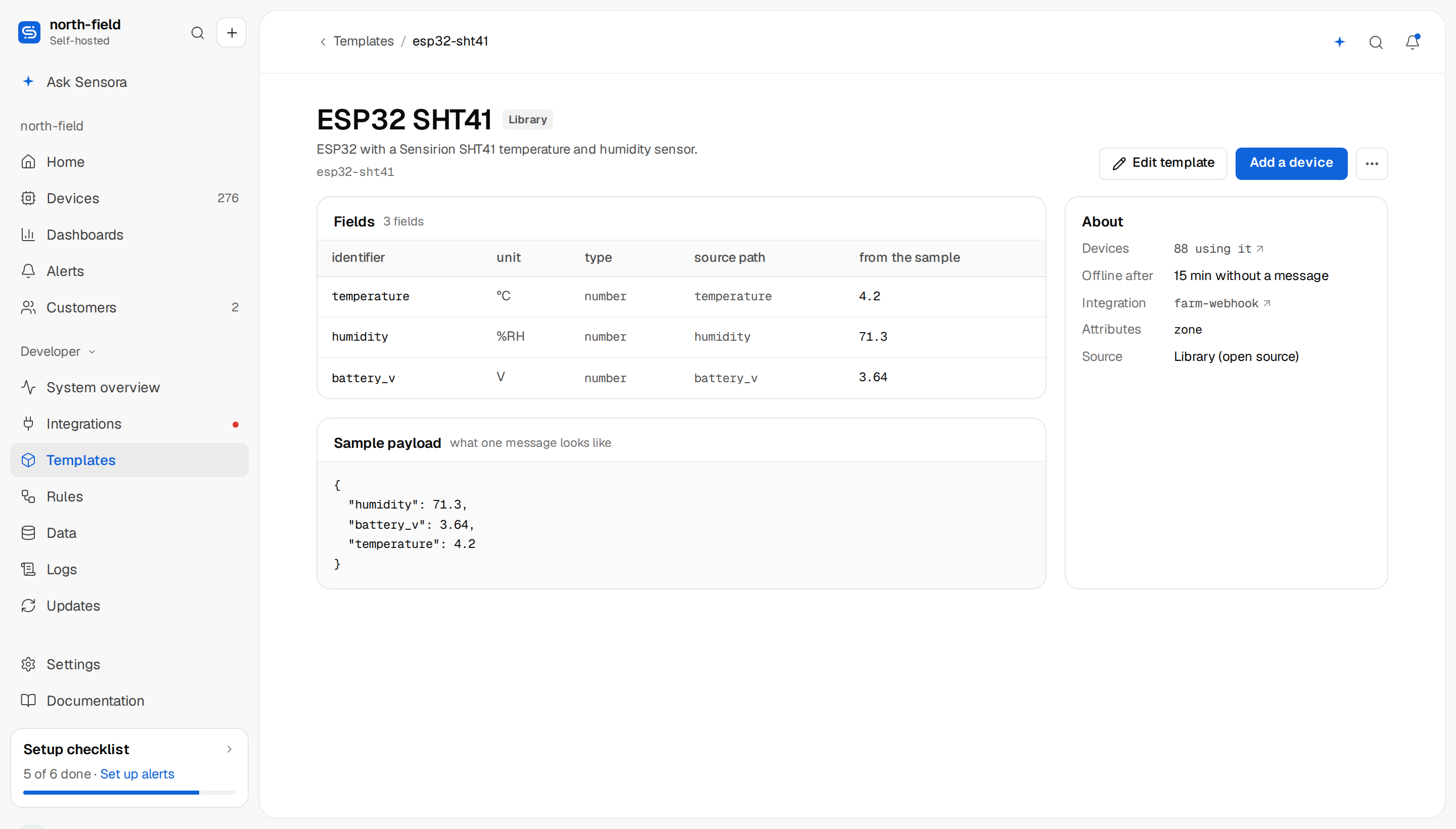
To delete a template, open the More actions menu on its page and select Delete template…. Its devices stay. They store the top-level numbers they send until you give them another template.