
Customer app
The customer app is the web page your customers open to see the devices they bought from you. This page shows you how to brand it, how customers sign in, and how to serve it on your own domain.
Where the app is
The app is part of your Sensora instance, at /portal. The address /add, printed on box labels, opens the screen where a customer adds a device. In the dashboard, Customers, then Customer app, then Open as a customer opens /portal.
What a customer sees
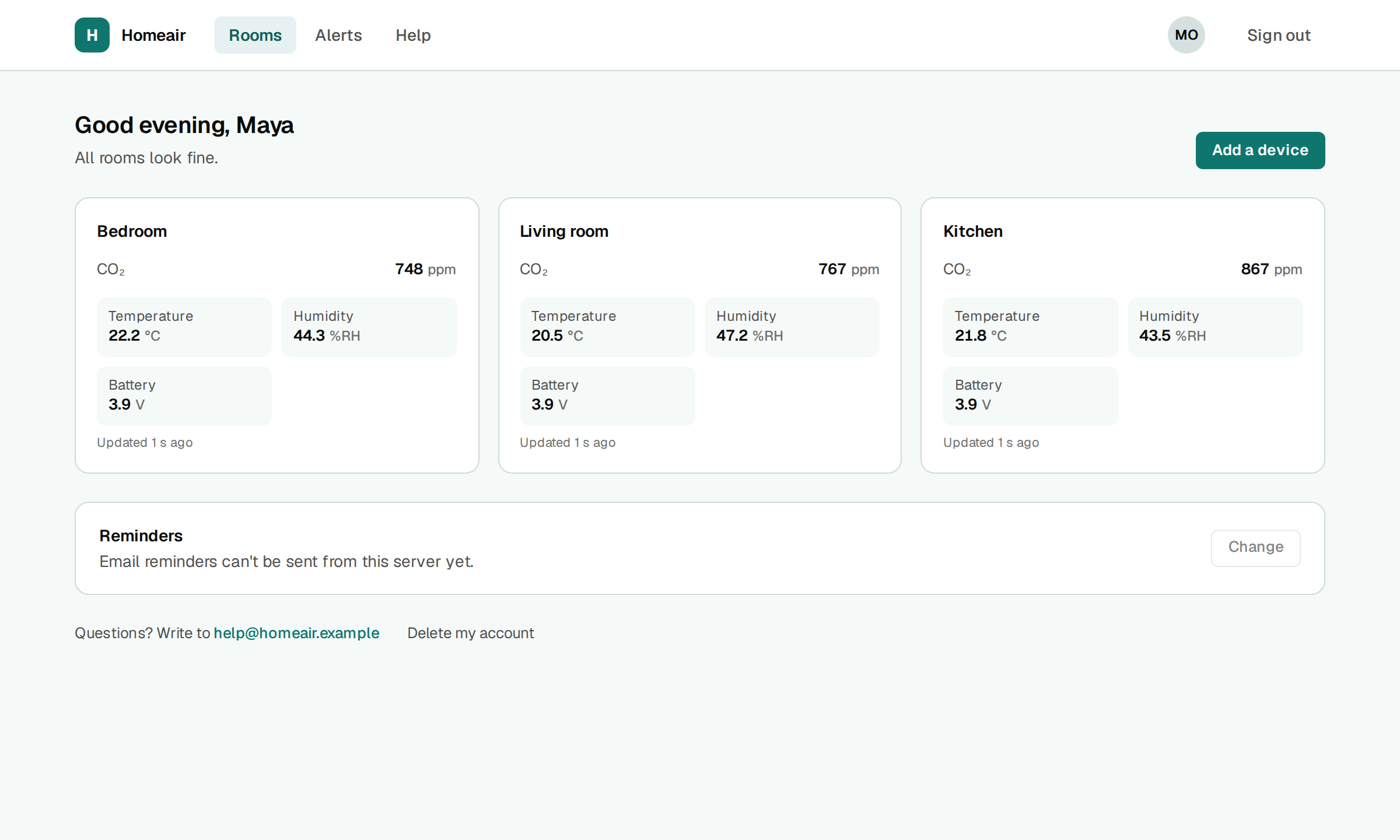
- Rooms. One card per device, with the room name the customer gave it, the latest value of each reading and its age. When a device is silent for longer than the offline time of its template, the card says "Last seen" and the values are greyed out.
- Add a device. Opens the screen for the claim code on the box.
- Reminders. The customer can ask for an email when a device stops reporting for an hour, 6 hours, a day or 3 days. This needs email sending on the server.
- Help, Sign out and Delete my account.
The product name in the app, for example in "SCD41, ready to add", is the Model or sensor field of the device's template. Without it, the app uses your app name. See Templates.
The app shows no Sensora name or logo.
Set the name, logo and colour
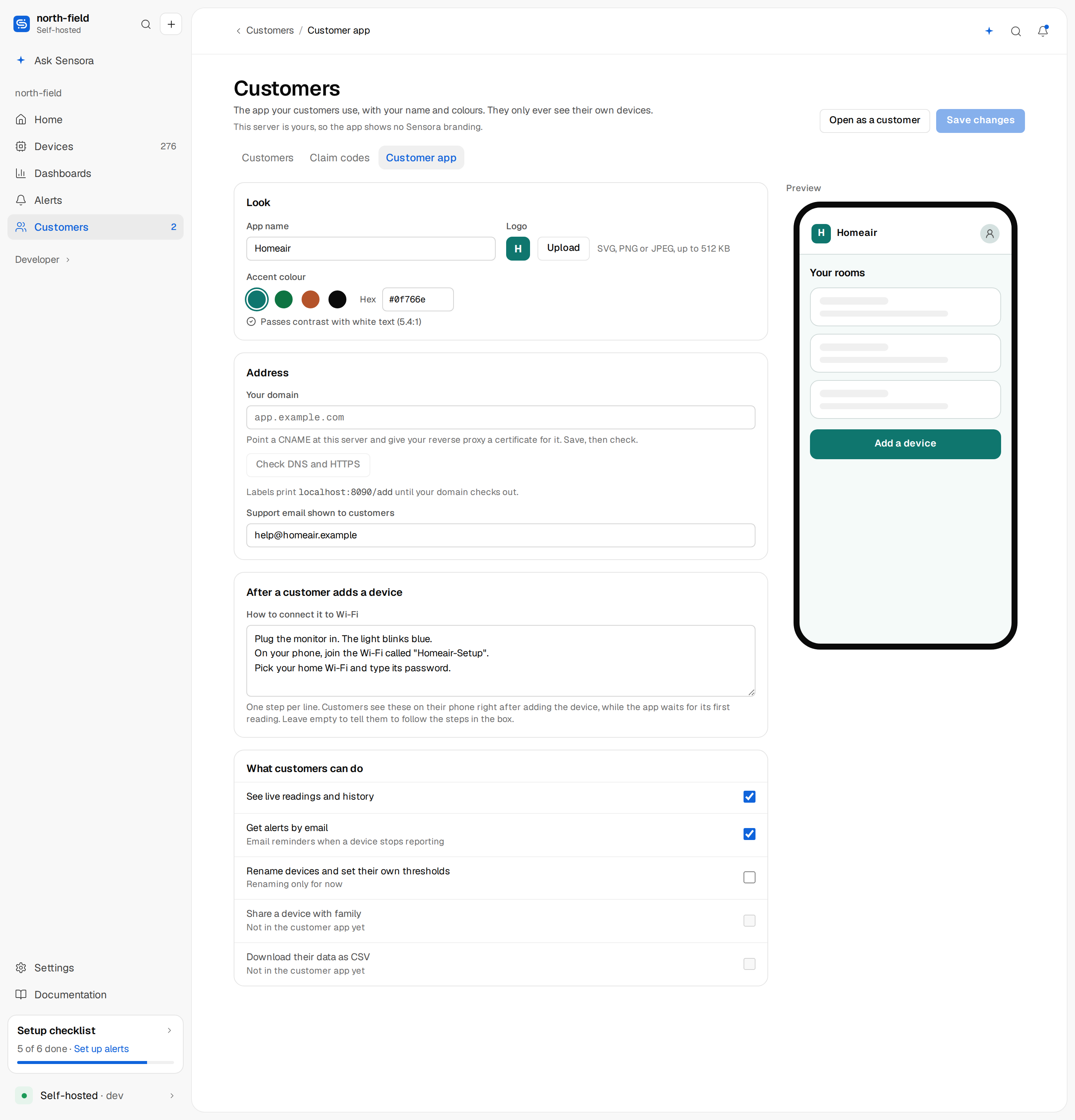
- In the dashboard, open Customers, then the Customer app tab.
- Fill in the fields. The phone preview follows what you type.
- Select Save changes.
| Field | What it does | Rules |
|---|---|---|
| App name | Shown in the app, the browser tab, the sign-in email and on box labels. | Up to 60 characters. |
| Logo | Shown in the app header. Without one, the app shows the first letter of the app name. | SVG, PNG or JPEG, up to 512 KB. |
| Accent colour | The colour of buttons. | A hex colour such as #0f766e. White text on it must reach a contrast of 4.5:1. |
| Support email shown to customers | Shown under Help and when a device does not connect. | One email address. |
| How to connect it to Wi-Fi | Shown right after a customer adds a device. | One step per line, up to 8 steps. |
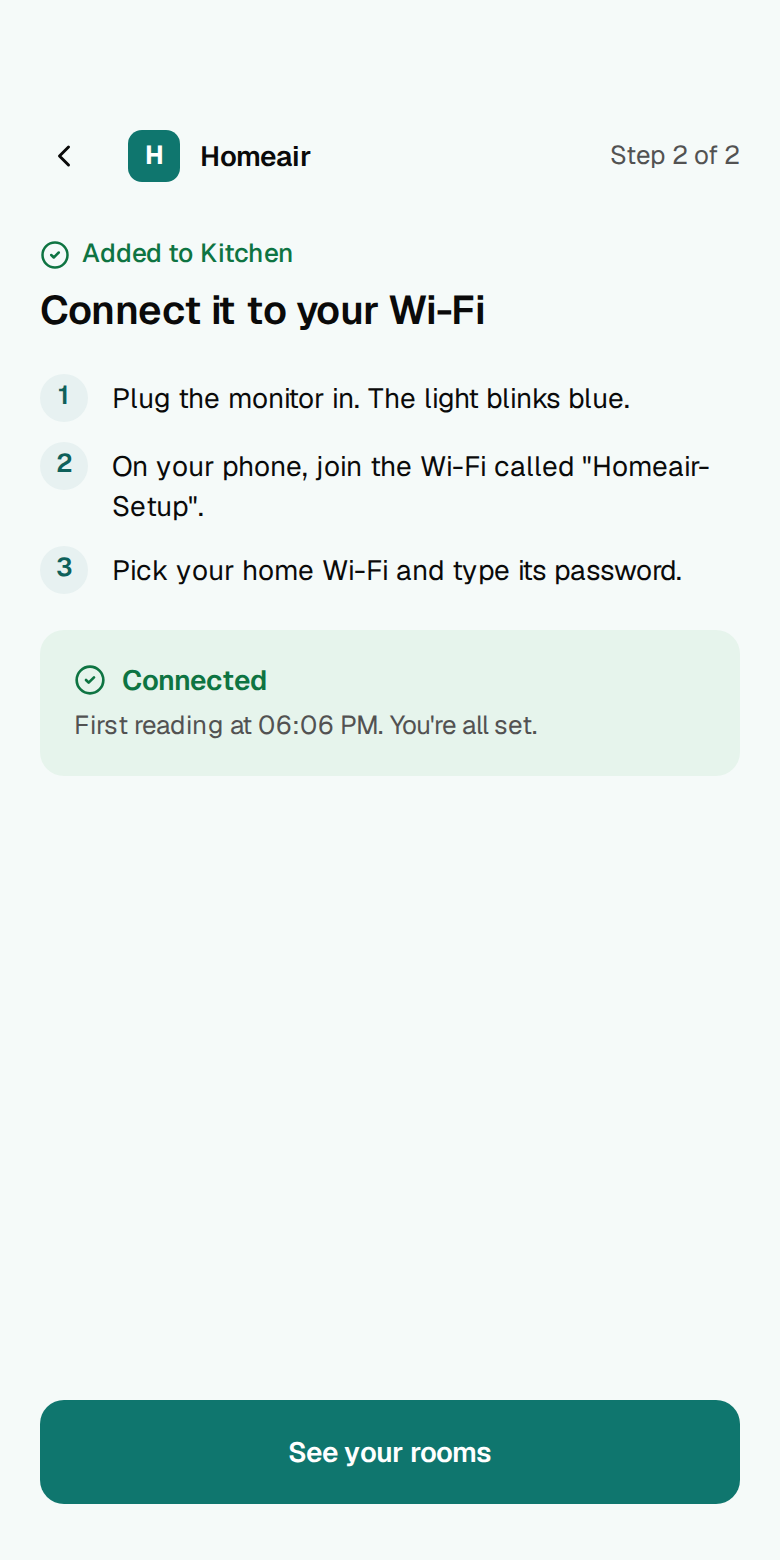
The app cannot send Wi-Fi settings to a device. The Sensora library takes them over USB or from values compiled into the firmware. For a product that customers set up at home, your firmware needs its own Wi-Fi setup, and the Wi-Fi steps describe it.
The app then waits for the first reading. After 5 minutes without one, it suggests checking the Wi-Fi password.
Choose what customers can do
The What customers can do section has five switches.
- See live readings and history is on by default. When off, room cards show no readings. The app never draws history.
- Get alerts by email is on by default. It lets customers turn on Reminders. These are not alerts on values.
- Rename devices and set their own thresholds changes nothing in the app in version 0.1.27.
- Share a device with family and Download their data as CSV cannot be turned on.
How customers sign in
Customers have no passwords. They sign in with a link sent by email, so sign-in works only when the server has both of these:
- Email sending. Set
SMTP_HOSTandSMTP_FROM, andSMTP_USERandSMTP_PASSWORDif your mail server needs them. Without email the app answers "This server can't send email yet". - A known public address. Set
PUBLIC_URL, or verify your own domain. The link in the email points to one of these two. Without either, the app answers "This server doesn't know its public address".
Configuration describes these variables.
- The customer types their email address and selects Email me a link.
- Sensora emails a link that works once, for 15 minutes.
- The link opens the app and signs the customer in. The first sign-in with an address makes the customer account.
The sign-in is kept in the browser tab. When the customer closes the tab, they sign in again with a new link. On the server a sign-in ends after 30 days at the latest.
Set a dashboard password before you give the address to customers
The customer app and the dashboard share one address. The dashboard API refuses a customer sign-in. But with no dashboard password and no API key, the dashboard at / is open to anyone, including your customers. See Security.
Try it without email
To try the customer app on your own computer without a mail server, start the stack in development mode:
SENSORA_ENV=development docker compose -f deploy/docker-compose.yml up -dThe sign-in form then shows the link on screen in place of sending an email. In this mode anyone who can reach the instance can sign in as any email address. Use it only on your own computer, and run the command without SENSORA_ENV=development to switch it off.
Use your own domain
- At your DNS provider, add a CNAME record for your domain, for example
app.example.com, that points to the host name in yourPUBLIC_URL. An A or AAAA record with the IP address of that host also works. - Make your reverse proxy answer
https://app.example.comwith a valid certificate and pass the requests to Sensora. Sensora does not request certificates. See Security. - In Your domain, type the host name and select Save changes.
- Select Check DNS and HTTPS.
| Result | Meaning |
|---|---|
| Waiting for DNS | The domain has no DNS record yet, or Sensora could not compare it with PUBLIC_URL. |
| DNS points elsewhere | The domain resolves to another server. |
| DNS verified · HTTPS not working | The DNS record is right, but https:// on the domain did not answer as this server. |
| DNS verified · HTTPS on | The domain leads to this server and answers over HTTPS. |
Finish steps 1 and 2 before you run the check
As soon as the DNS part passes, box labels and sign-in emails use https://<your domain>, also when the HTTPS part failed. If the result is DNS verified · HTTPS not working, fix the proxy and select Check again before you print labels or let customers sign in. To go back to PUBLIC_URL, empty Your domain and save.
Your domain serves the whole instance. https://app.example.com/ is the dashboard.